

Exclusive preview: Discover the Google Drive Integration now – available from October 22, 2026.
👑 Enterprise Feature
Would you like to use this feature? Feel free to contact us for activation!
📧 Contact: support@sproof.com
🤝 We look forward to your inquiry!
Within sproof Sign you can select and upload documents directly from your Google Drive. The signed document will automatically be saved in the original Google Drive folder.
📑 Step-by-step Guide
You can upload documents to sproof Sign from Google Drive in several ways:
Upload via "Upload Document"
-
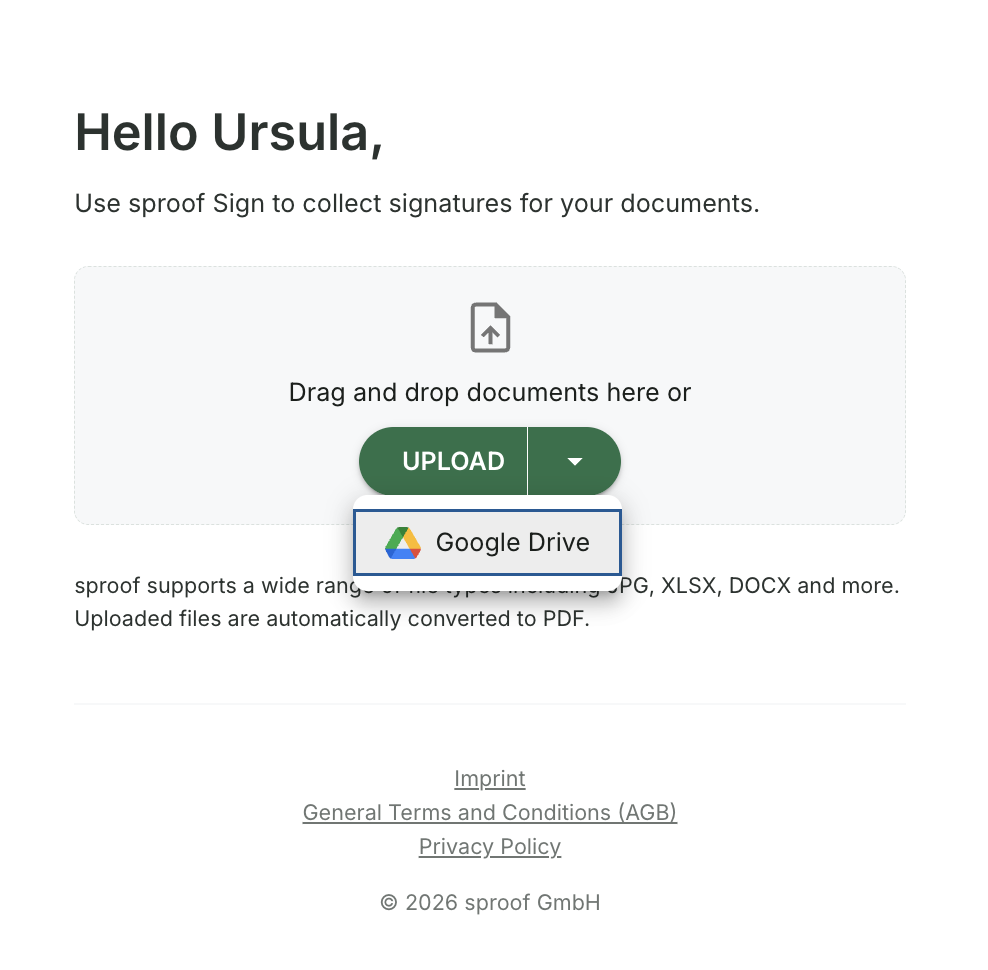
Click "Upload Document" to open the upload area. Then click the down arrow on the "Upload" button and select "Google Drive".
-
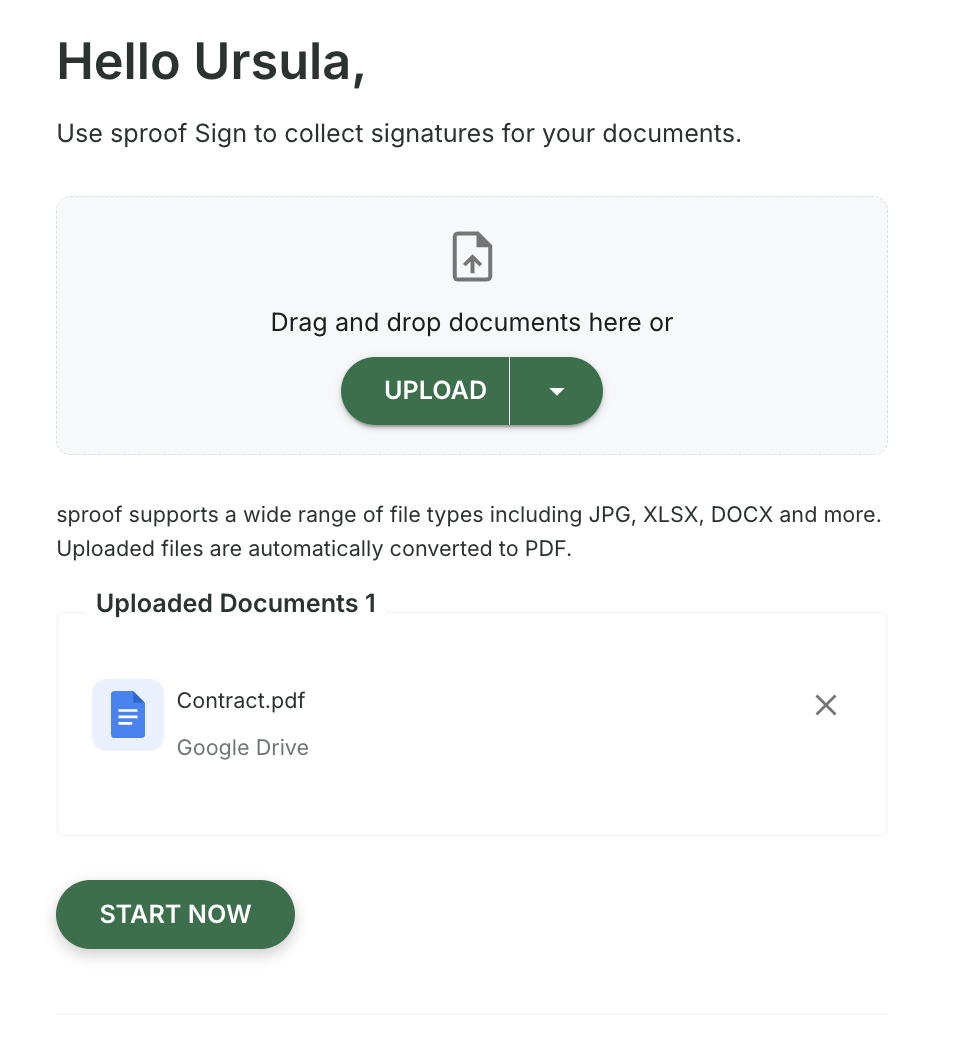
After that you can select the desired documents directly from your Drive and proceed in sproof Sign as desired.
-
The signed document will automatically be saved in the original Google Drive folder.
Add documents directly in the editor
-
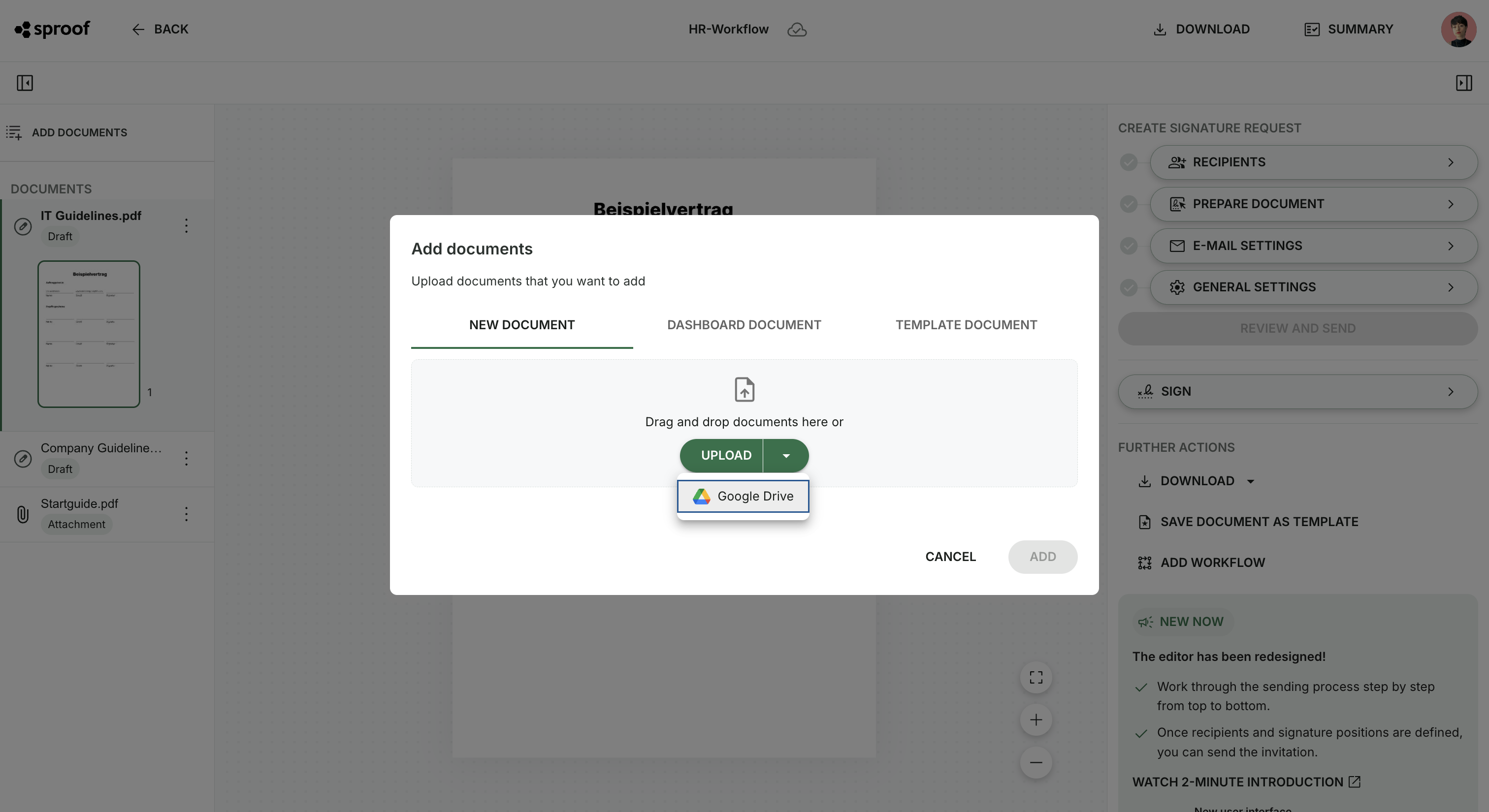
If you already have a document open in the editor, click "Add Documents" in the top left. Then also open the selection via the down arrow on the "Upload" button and choose "Google Drive".
-
Then select the desired files from your Drive and continue in sproof Sign as desired.
-
The signed document will automatically be saved in the original Google Drive folder.
Add documents in the Workflow Editor
Files can also be selected and uploaded from Google Drive in the Workflow Editor.