

💡 At a glance
In the plan settings under the "License & Team" tab, as a plan admin you receive a structured, central overview of your entire organizational structure. Here you manage your plan members, monitor your remaining signature quotas, and register your company's domains.
📑 Step-by-step guide
In your sproof Sign dashboard, click the gear icon for settings in the bottom left. Then select the "License & Team" tab under the Plan Management section in the left navigation menu.
1. Your plan
-
Control user and signature quotas: Check the current status of your licenses in the upper area of the view. An integrated progress bar shows you, for each e-signature standard, how many signatures have already been used. If the signature volume falls below the last 10%, an email is automatically sent to the administrators.
-
Make mid-year purchases: If your licenses or signatures are exhausted, you can purchase additional quotas directly through the dashboard. Additional users or upgrades are billed pro rata until the end of your current one-year plan period. The monthly costs incurred will be shown to you transparently before the final purchase process.
2. Plan members
-
Management of plan members: In the second tab "Plan Members" you will see a structured list of all people who are currently members of your plan, including their license and role.
-
Add new people to the plan: To invite a new plan member, click the "Add member" button. In the following window, enter the person's name and email address and set the license and role.
-
Adjust existing licenses:
-
Change roles: Adjust a member's role at any time directly in the list via the drop-down menu.
-
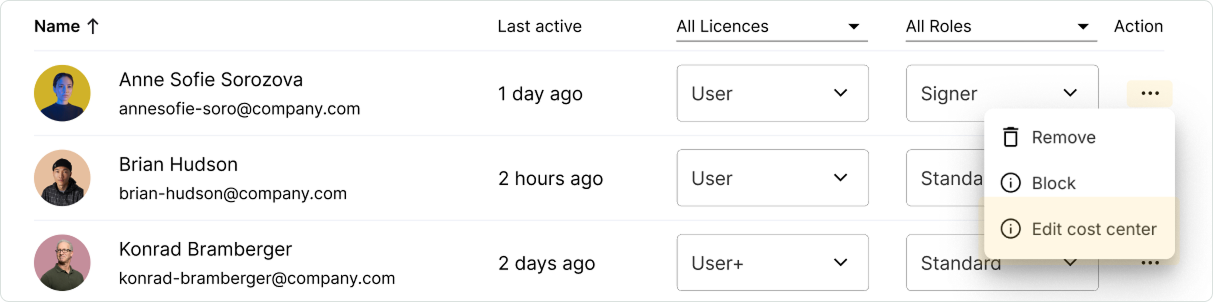
Release licenses: If someone leaves the company, you can remove or block access via the three-dot icon. The license is immediately freed up.
-
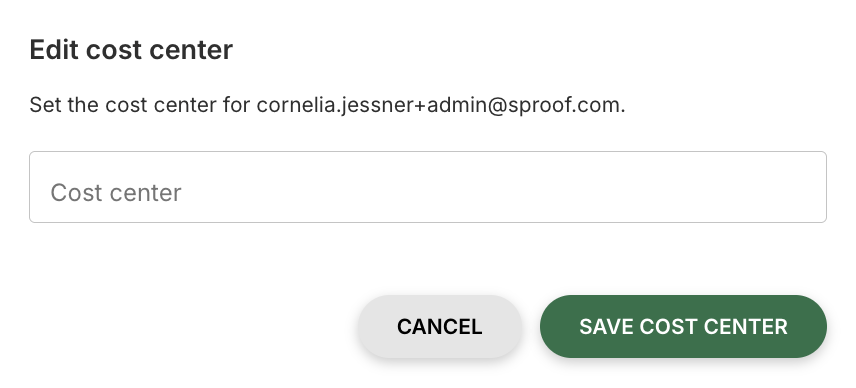
Assign cost centers: For precise plan statistics, you can assign cost centers to members. Click three-dot icon > Edit cost center to make the assignment.
-
3. Role management
The rights and role management allows plan admins granular control over team members' access rights in sproof Sign. By assigning predefined or custom roles, you as plan admin ensure that each person has only the permissions necessary for their tasks.
Learn more in the module Rights and Role Management
4. Domain management
In the "Domain Management" tab you can register your company's domains. With registered domains you can configure individual branding per domain or automatically add users to your plan.
Would you like to use these features?
If you need support or would like personalized advice, our team is happy to assist you.
📧 Contact: support@sproof.com
🤝 We look forward to your inquiry!