

💡 At a Glance
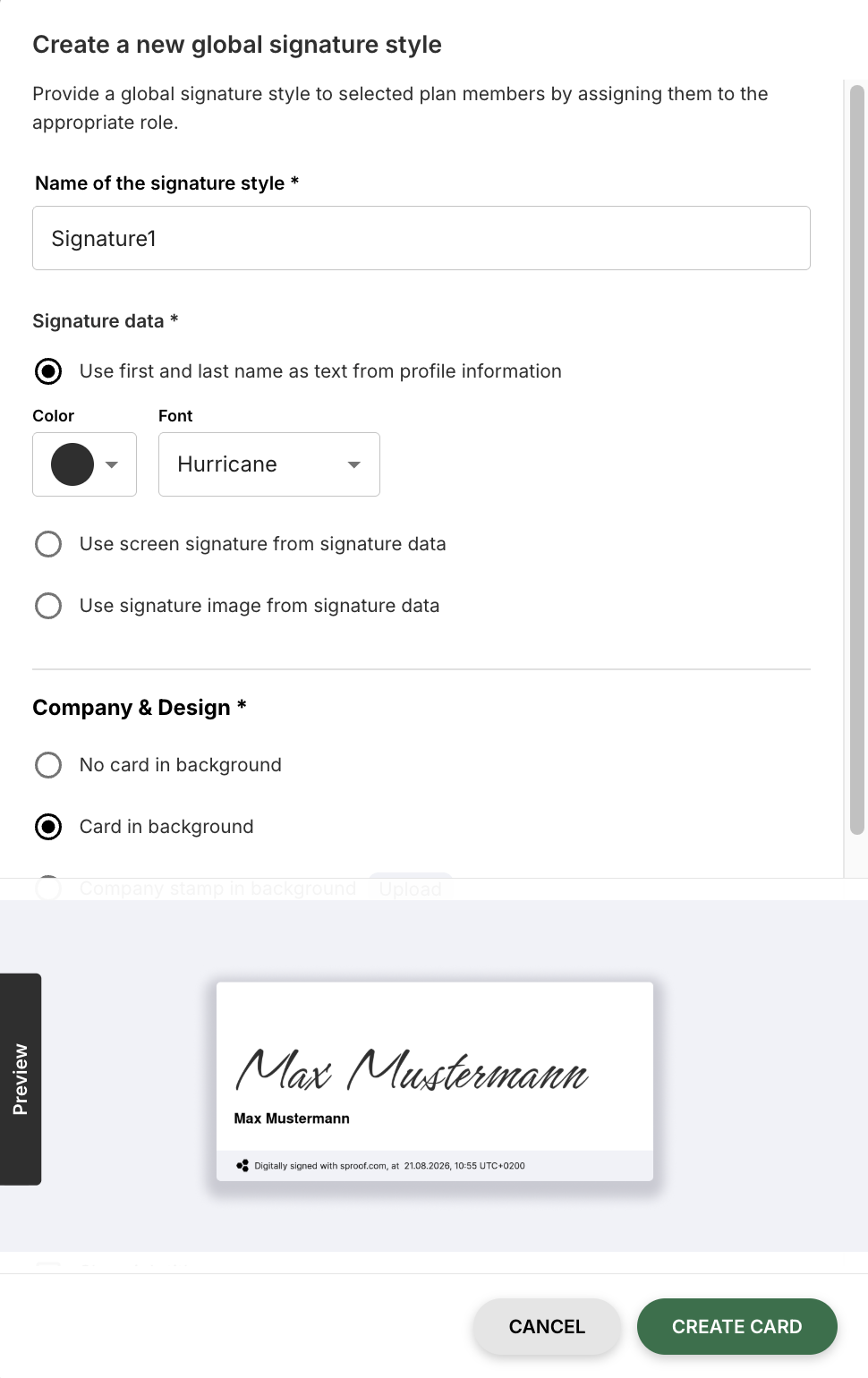
To standardize the appearance of signatures on documents, as a plan admin you can create global signature styles and assign them to individual roles. These global signature styles determine how the signature, including logo, name and additional information, looks. The necessary data is automatically taken from the user profiles.
📑 Step-by-Step Guide
Central Management of Signature Styles
As an administrator you can ensure a company-wide consistent appearance for all signatures. You configure these settings centrally under Settings > Signature Styles > Global Settings.
Important: The signature style defined here (visual layout of the signature card) is independent of the legal signature type (EES, FES, QES).
Configuration by Administrators
When designing these global signature styles you have various options:
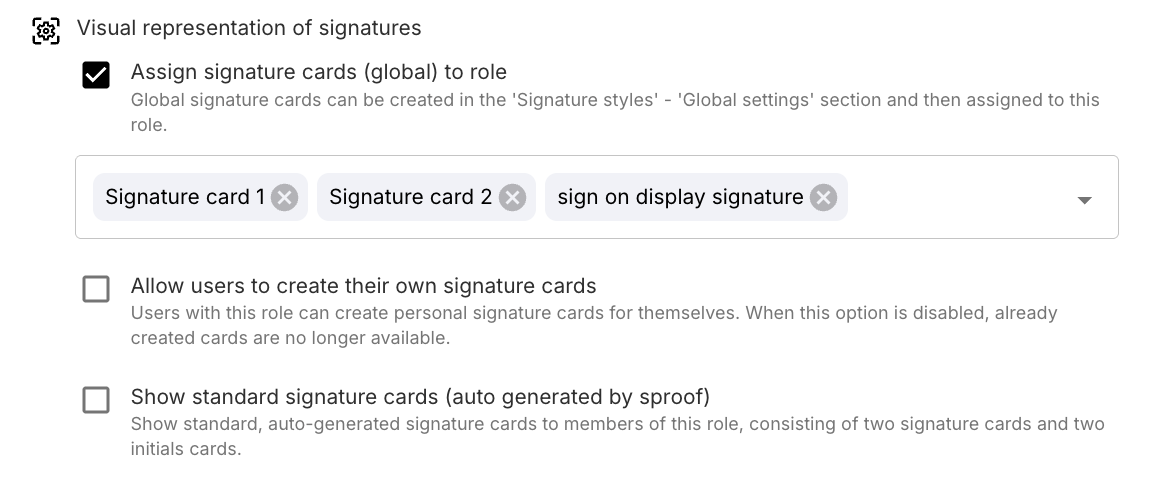
Via rights and role management you can make the following settings:
-
Assign global signature cards to roles: Assign certain roles global signature styles.
-
Create custom signature styles: Allow users to create their own signature cards.
-
Visibility of default styles: You can determine whether the default signature styles automatically generated by sproof should be visible to your team or not.
→ Learn more about “Rights and Role Management”.
Info: You can define your signature styles independently of the global signature styles under Settings > Signature Styles > My Settings.
Application for Plan Members
Plan members are generally bound to the global signature styles assigned to them to maintain brand consistency. However, plan members still have the option to manage their personal data under Settings > Signature Styles > My Settings.