

👑 Enterprise Feature
Would you like to use this feature? Please contact us to activate it!
📧 Contact: support@sproof.com
🤝 We look forward to your inquiry!
💡 At a Glance
In the Assistance & Support area, plan admins can specify whether sproof Support may request temporary access to accounts after a ticket submission when there are technical problems. This remote support feature is enabled by default and is intended for quick real-time troubleshooting without compromising data security. Actual access only occurs after the affected plan member explicitly confirms the request in their own settings.
📑 Step-by-Step Guide
1. Manage Remote Support feature globally
As a plan admin you control the availability of this feature centrally for all plan members in your organization.
-
In the dashboard, navigate to Settings in the lower left.
-
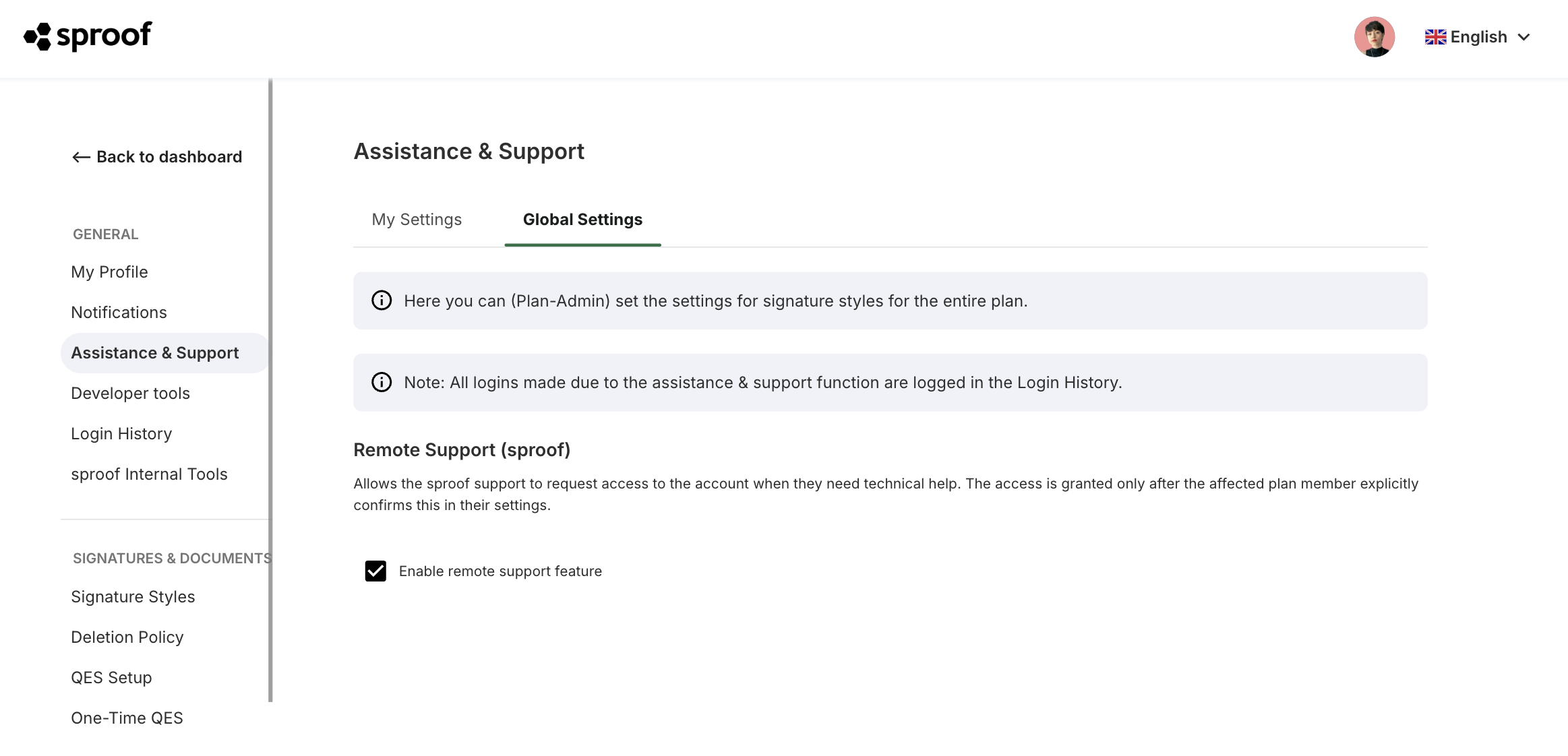
Select “Assistance & Support” from the left menu and switch to the “Global Settings” tab.
-
To allow the feature, enable the checkbox Allow Remote Support feature (enabled by default).
2. Ticket creation by plan members
If you have enabled the checkbox, the support route is available to users.
-
Plan members see in their settings under Assistance & Support the option to report a technical issue via the “Create ticket” link.

-
sproof Support reviews the request internally.
-
If it is determined that troubleshooting directly in the account is necessary, Support will initiate a remote request.
3. Approval or rejection by the plan member
Once Support requests access, the view in the Assistance & Support area of the affected plan member changes.
-
The plan member now sees a detail overview with the buttons “Activate Remote Support” and “Decline Remote Support”.
-
An overview lists exactly which actions are permitted (e.g., optimizing plan settings) and which remain strictly blocked (e.g., downloading documents or signing on behalf of the plan member).
-
Access only begins when the plan member actively clicks Activate Remote Support.
Note: All logins performed because of an approved support function are recorded transparently and immutably in the login history by the system.
4. Duration and timer during active support
After activation, the support session proceeds under the highest security standards.
-
Access is active for a maximum of 24 hours and then expires completely automatically.
-
In the user's dashboard, the status message Support access active and a precise live timer with the remaining time are displayed during this period.
-
The plan member can at any time immediately end the session early manually via the “Deactivate Remote Support” button.
5. State after termination
Once the 24 hours have elapsed or access has been manually disconnected, the connection is severed.
-
The temporary support section is removed from the plan member's settings.
-
The user will again only see the standard ticket creation section in Assistance & Support.