

💡 At a Glance
Templates allow documents to be edited, prepared, and securely saved for reuse. Templates can also be released for signature. The special feature of templates is that each recipient receives an individual copy of the template.
📑 Step-by-Step Guide
1. Create templates
Open a document by double-clicking the entry in the dashboard. You can edit the document as you wish and, for example, place form fields.
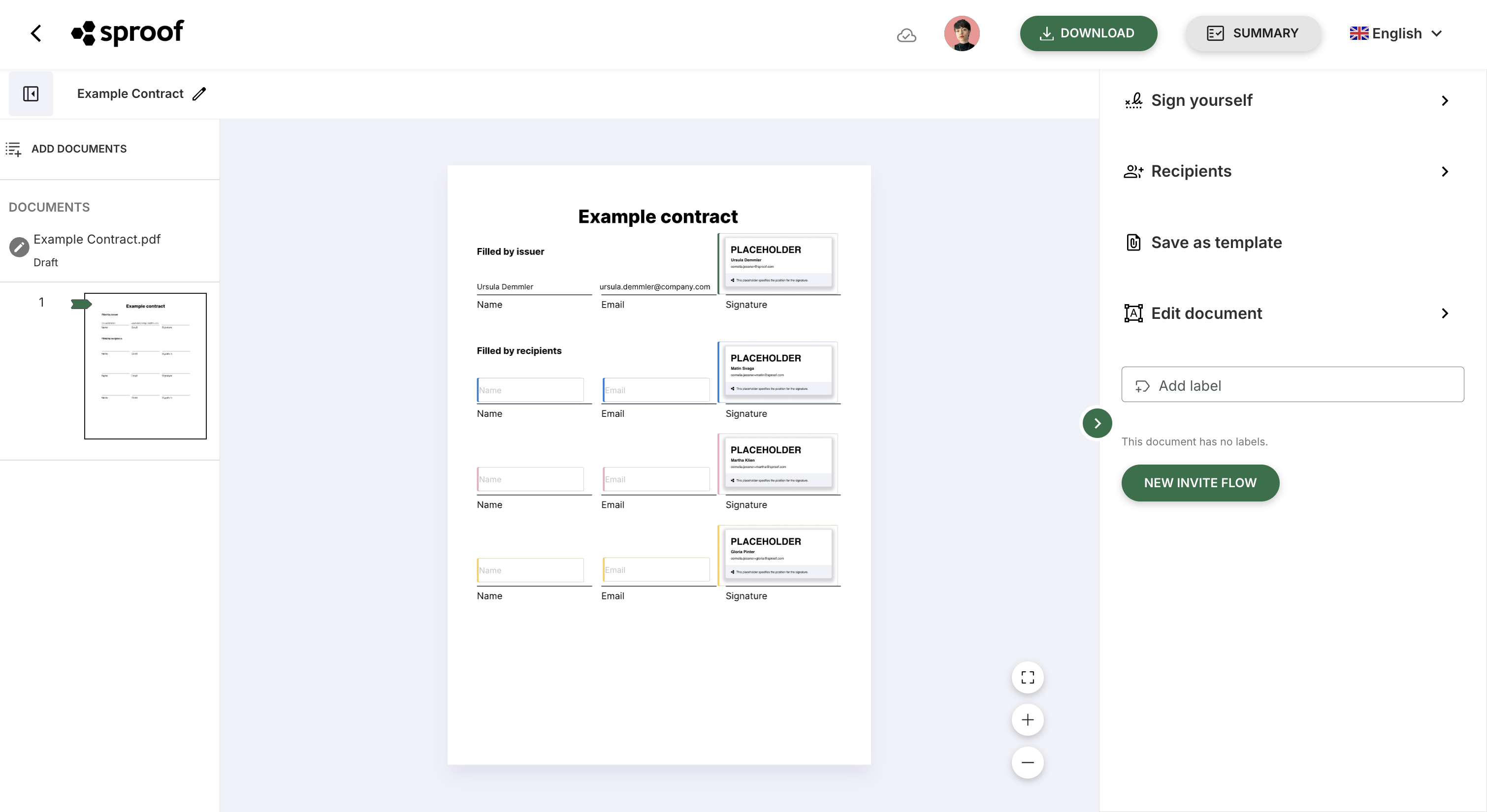
On the right in the tab “Save as template” you can then save the document including all changes as a template. You can also save a document as a template directly from the dashboard. To do this, click the three dots on the right and then “save as template”.
You can find the saved templates collected directly in the dashboard under the Templates menu item.
2. Create a new document from a template
A simple click on a saved template opens it in the editor view.
When you open a template you can create a new document from the template either at the top or in the right-hand bar. This means you create a copy of the template which is saved as a new document in the Documents tab as a draft, without changing the original template. This document can be edited and signed as usual or saved again as a template.
By clicking the three action dots on the right you can delete a template and also directly create and open a new document from the template.
3. Bulk sending of templates via link
With the “Share link” function you can send a template like a mail merge to many people at once. Each recipient receives their own copy of the document.
Procedure
-
Open a saved template.
-
Click “Share link”.
-
Set the signature position and the desired signature standard.
-
Copy the generated link and send it to the desired recipients.
Result
-
Each person who signs via the link receives their own copy of the document.
-
After each signature a new entry with the status “Completed” appears in the dashboard.
-
These documents can also be signed by you afterwards.
Note: With “Share link” only one person can sign per copy. If you want to create a document with multiple signers (e.g., co-signature), please use the “Create new document from template” function.