

💡At a Glance
With the Document Visibility in Folders feature, senders precisely control which recipients are allowed to view specific documents within a document folder. By default, all recipients have access to the entire contents of a folder. However, this feature enables granular permission assignment so that confidential or irrelevant documents can be hidden from certain parties.
This is especially useful for optimizing signature processes by bundling different procedures into a single folder without violating data privacy between different groups. For example, a general NDA can be shared with all parties, while a specific internal contract remains visible only to certain people.
📖 Requirements and Limitations
This feature is available on all paid plans. It is important to note that while the content of a document is hidden, the presence of other recipients in the folder remains visible. All participants can see who is part of the process, regardless of access rights to individual files.
📑 Step-by-Step Guide
Hiding Documents
-
Upload multiple documents to the sproof Sign Editor to create a document folder. Then navigate to the "Recipients" tab and add all required signers or viewers.
-
Click the "Set document visibility" button to configure the permissions.
-
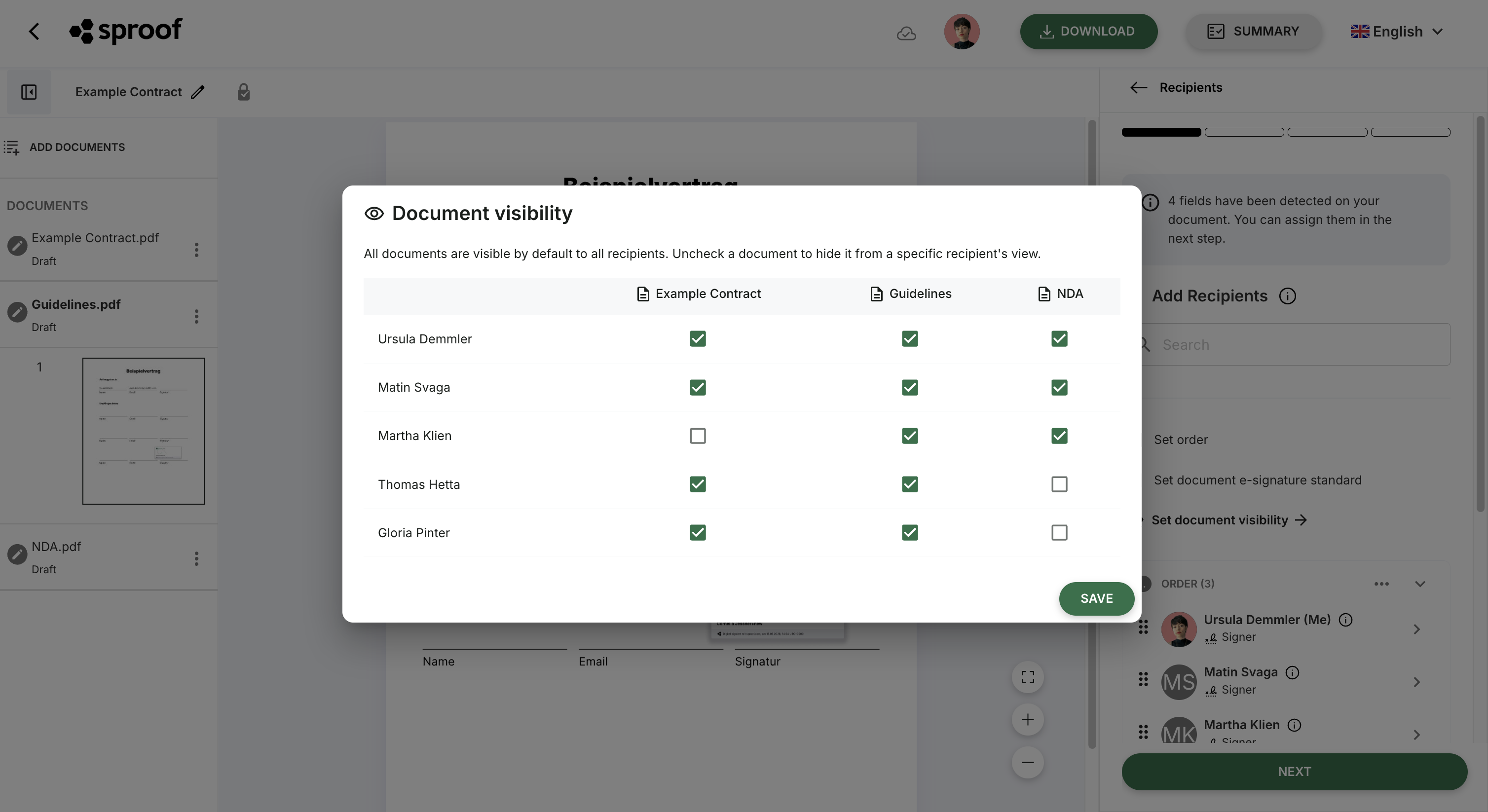
An overlay will open showing a matrix of all recipients and documents. Remove the checkmarks in the boxes to hide a document from a specific person. By default, all checkmarks are selected, which means the document is visible.
Note: Each document must remain visible to at least one person.
-
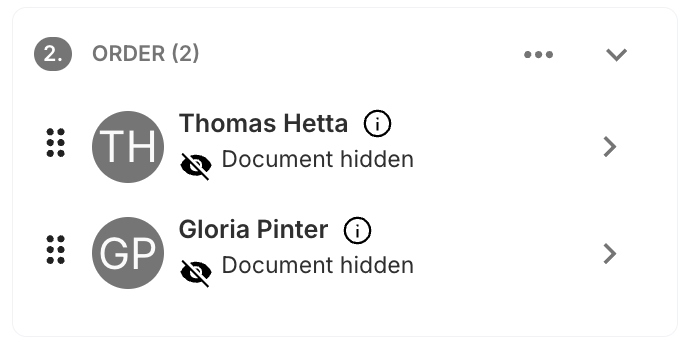
Save your configuration. Back in the editor you will now see visual indicators: recipients who have been denied access to a specific document are shown with the note “Document hidden”.
-
Complete the process and send the document folder as usual.
Views for Senders and Recipients
The sender always retains full oversight. In the document list, recipients without access rights are displayed in gray. The sidebar under "Recipient Details" also shows the exact status, for example "Access to 3 of 4 documents".
Recipients with restricted rights, after opening the folder, only see the documents for which they have permission. Other documents are neither visible nor accessible to them. However, they can still see in the overview of all participants which other people are involved in this process.