

💡 At a glance
The validity of a digital signature can be checked in various ways. sproof Sign offers this service directly in the tool. With a few clicks you can view the data of the signing person, creation date and time, as well as information about the issuer and the validity. From the dashboard you can download an audit trail for your document, in which you will find detailed information about the signing history and signature verification as well as the entire chat history.
📑 Step-by-step guide
1. Ways to verify an electronic signature
There are different ways to check the validity or the e-signature standard used for digital signatures on a document:
-
Check validity directly with an e-signature tool such as sproof Sign
-
Check in Adobe Acrobat Reader
-
Check with RTR
2. Check signatures in sproof Sign
-
Open a document that contains electronic signatures in sproof Sign.
-
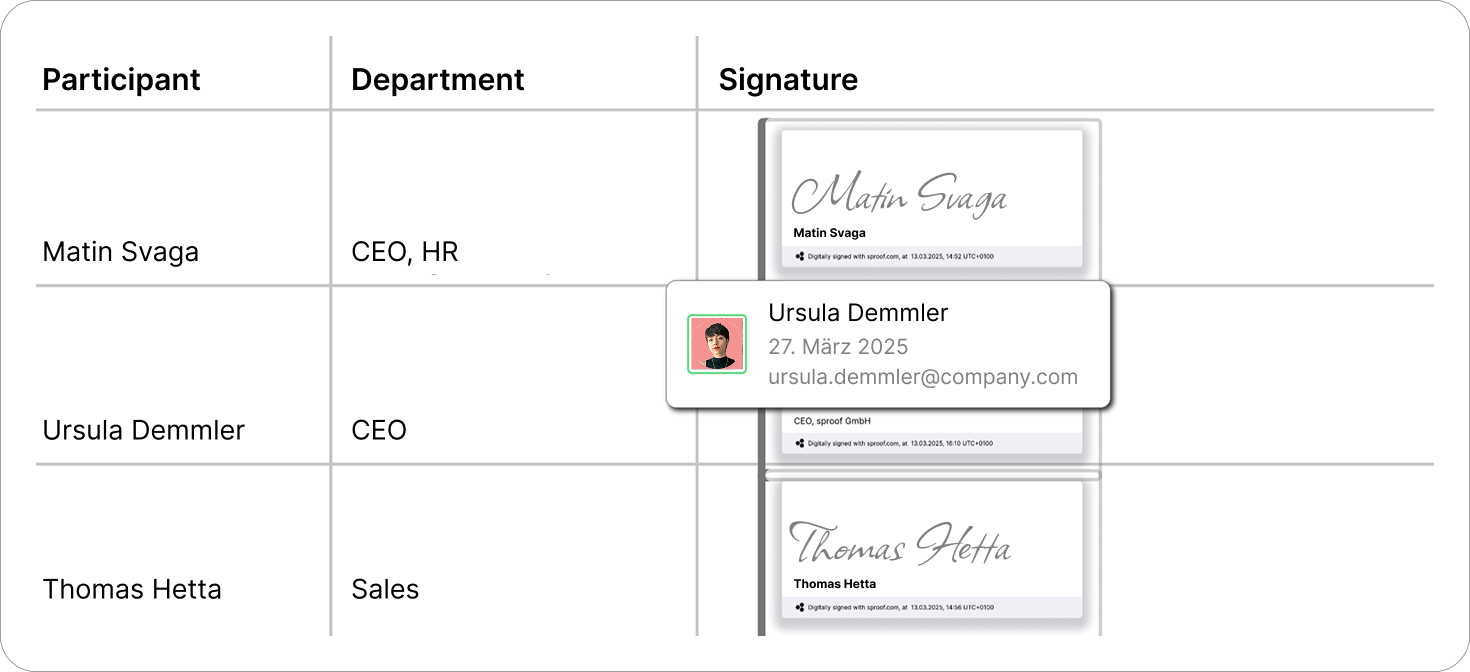
Hover the mouse over an electronic signature to see the creation date of the signature, the name and the email address of the signing person.
-
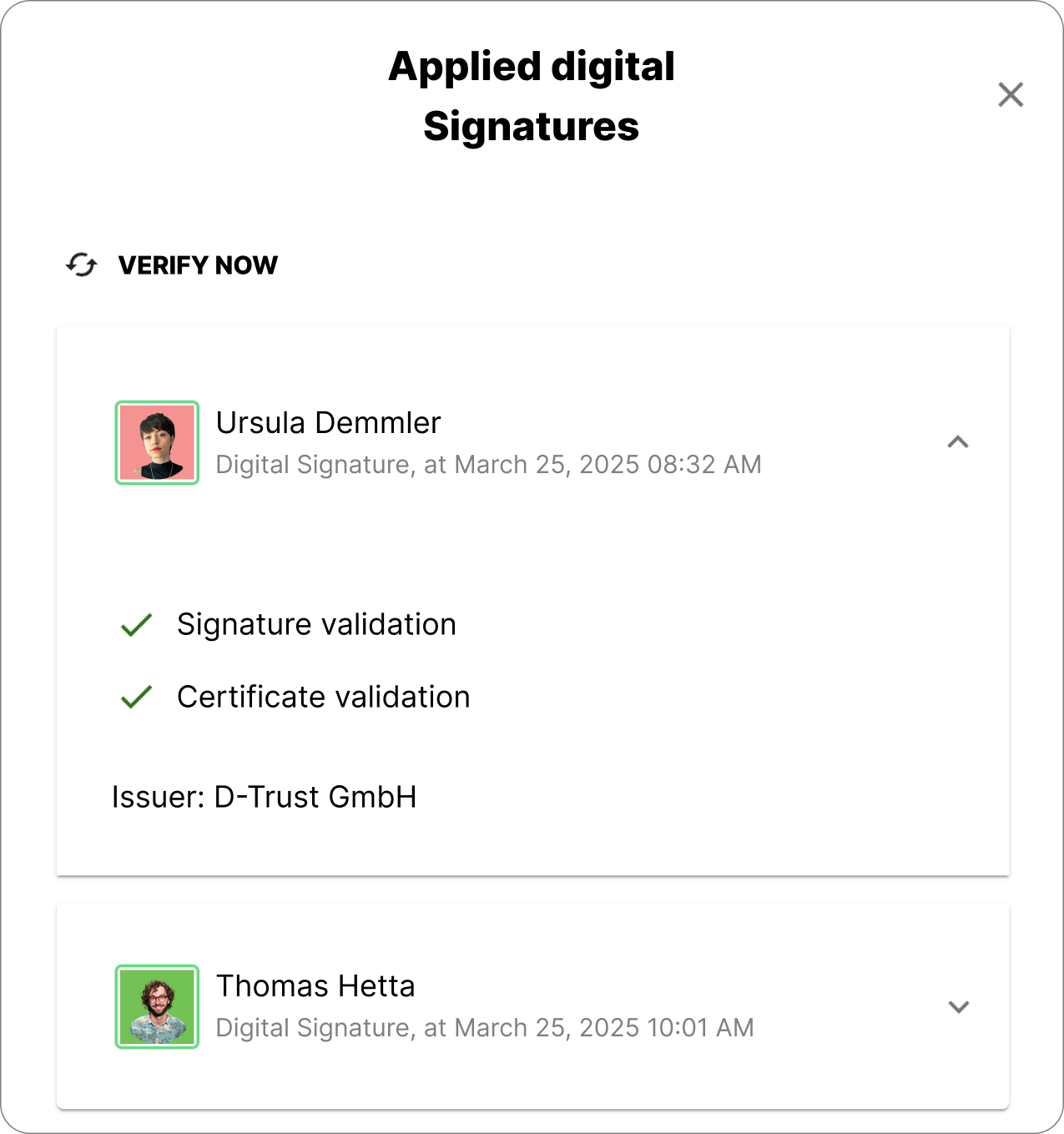
For more detailed information click on a signature. In the popup window you will see all applied digital signatures.
-
For an entry, click the arrow icon to expand the entry and display further details about the signature and its validity.
3. Download audit trail
From the dashboard you can download an audit trail for your document, in which you will find detailed information about the signing history and signature verification as well as the entire chat history:
-
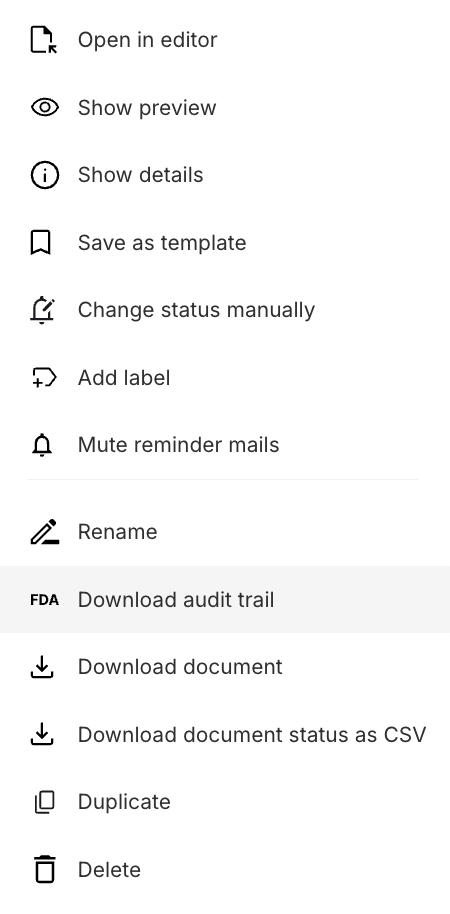
In the document list click the 3-dot icon of the desired document. The action menu will open.
-
In the overlay click the entry “Download Audit Trail“.
-
You should now find a PDF in the downloads folder of your device.