
💡 At a Glance
In the settings, email notifications can be configured at both the user and the plan level. User-level settings apply only to the individual user, regardless of their license. Plan settings can only be made by plan admins and apply to all team members. This module describes the user-level settings in more detail.
📑 Step-by-Step Guide
1. Open Notification Settings
-
Click “Settings” at the bottom left of the dashboard to open the settings.
-
Alternatively, you can click your profile picture in the navigation bar at the top and then click “Settings”.
-
In the settings, select “Notifications” from the menu on the left.
-
Select the “My Settings” tab.
2. My Settings
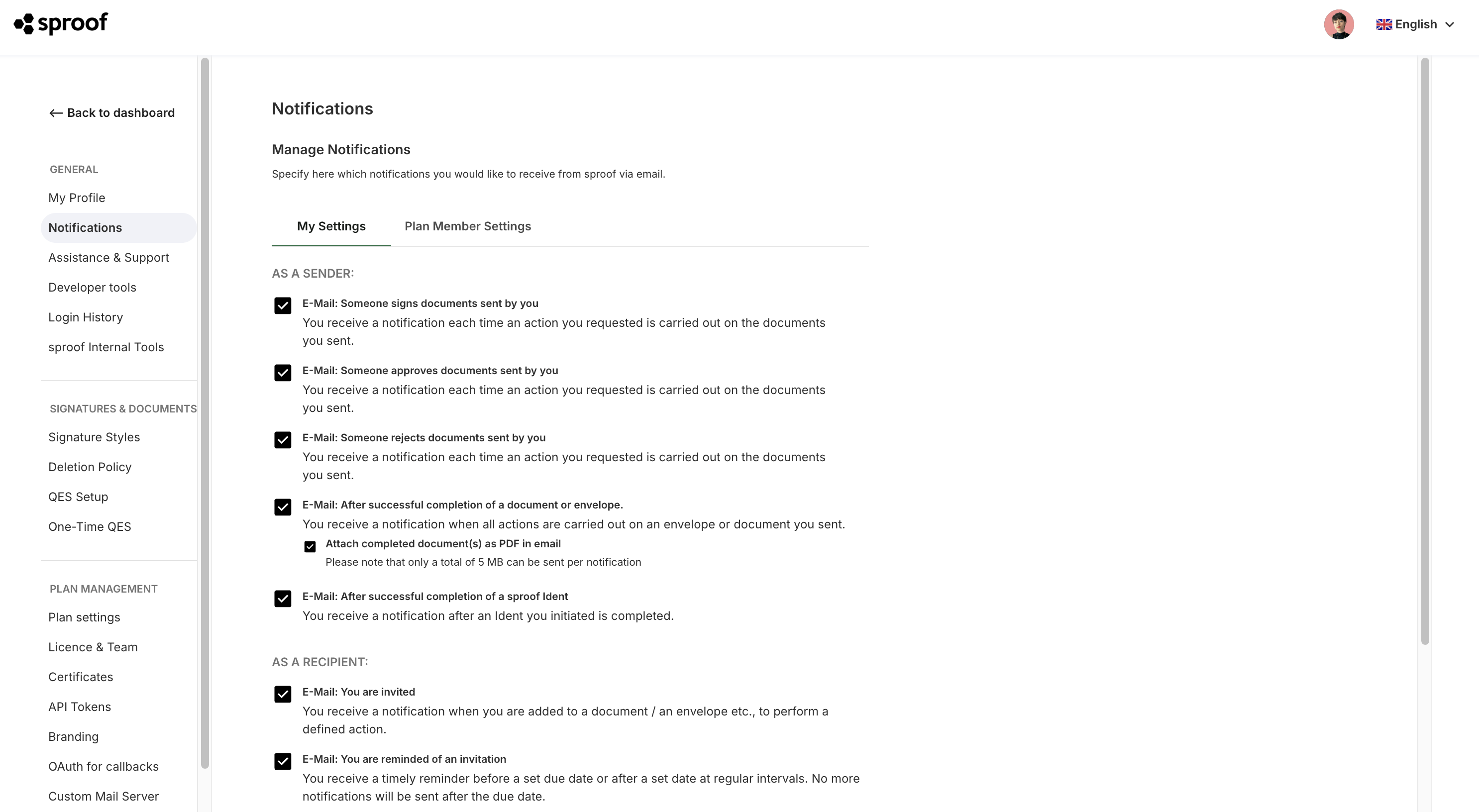
Note: The “My Settings” tab is visible to all users. The settings apply at the user level, meaning only to the individual user, regardless of their license.
-
You as the sender: These settings relate to interactions concerning a document you have sent. This includes, for example, when invited recipients sign, approve, or decline your document.
-
You as the recipient: These settings concern document invitations you have received from others. For example, you can specify whether you want to be informed by email about new document invitations or reminded of pending actions.
-
Other notifications: Decide whether you want to receive news about the product sproof Sign or be notified when documents are scheduled for automatic deletion.