

💡 At a glance
A signature style is the visual representation of your signature in sproof Sign. The signature style does not affect the legal signature type (EES, FES, QES). sproof Sign offers different signature styles that you can configure yourself. A signature style can consist either of the full name (signature style) or of your initials (initials style).
📖 Background and key terms
What is a signature style?
In sproof Sign a signature style is the visual representation of your signature. This has nothing to do with the e-signature standard according to the eIDAS regulation (EES, FES, QES). You can save different representations of your signature (e.g., name, name & profile picture, photo of the signature, …) and reuse them.
Signature style vs. initials style
sproof Sign distinguishes between “signature styles” and “initials styles”. A signature style uses your full name and optionally can display additional information (e.g., profile picture, job title, company, etc.). An initials style consists only of the initials (first letters of your given and family name).
When signing documents, at least one signature style and one initials style are always available. This gives you the flexibility to sign a document in one place with your full name (form field “Signature”) and in another place with your initials (form field “Initials”).
📑 Step-by-step guide
My settings
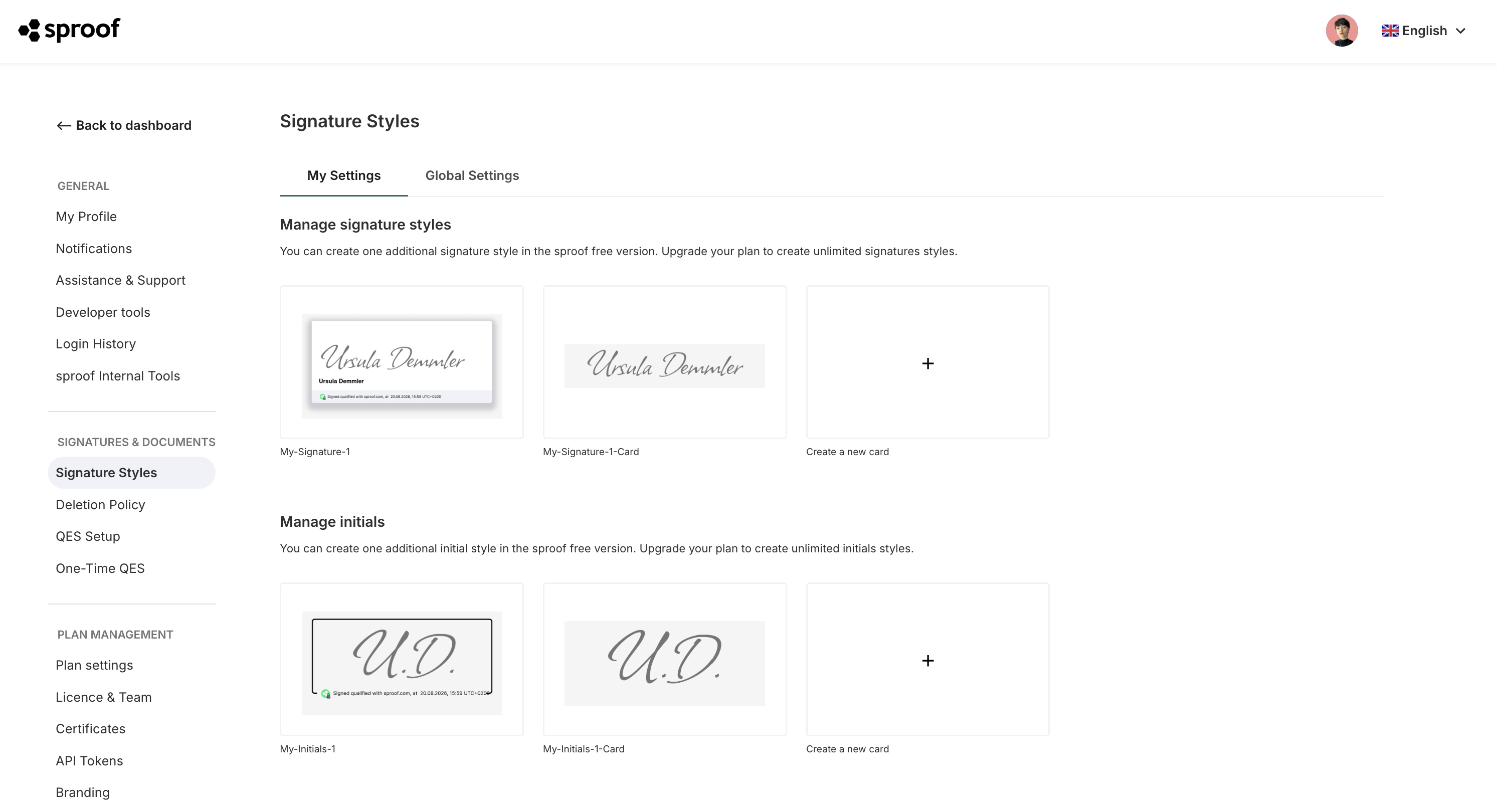
Signature styles overview
An overview of your signature data & styles can be found in Settings:
-
Click “Settings” in the bottom left of the dashboard to open Settings. Alternatively, you can click your profile picture in the navigation bar at the top and then click “Settings”.
-
In the Settings menu select “Signature styles” and then the “My settings” tab. Your signature styles are shown here and you can add new ones.
Important: Your plan admin can define global signature cards and assign them to plan members.
Create new style
Important: You can only create your own styles if this has been enabled by the plan admin.
You can create a new style in Settings or directly during the signing process:
-
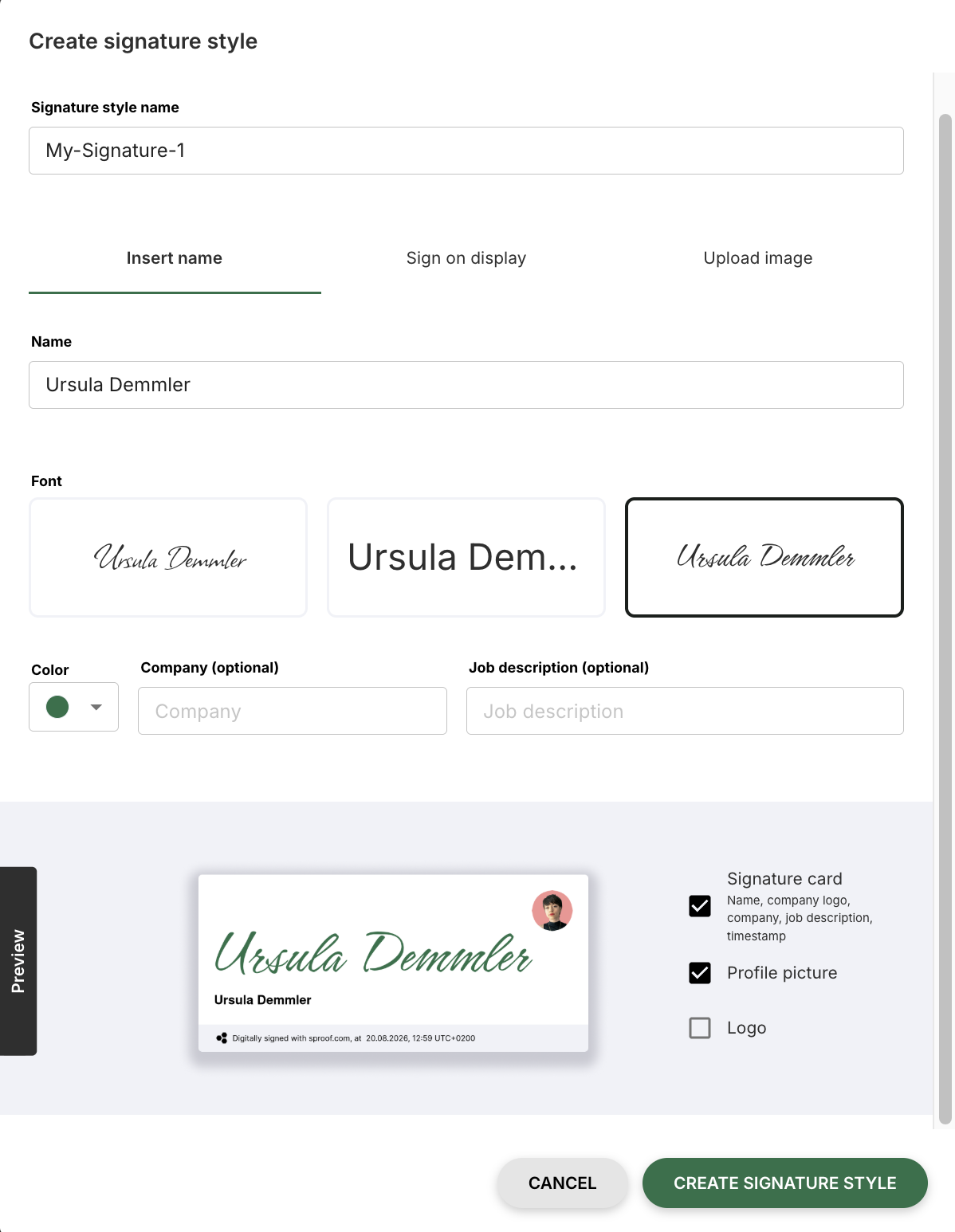
Click the area with the plus next to the existing signature or initials styles in Settings or in the signing process. A dialog will open.
-
In the dialog click the pencil icon and enter a descriptive name.
-
Choose whether you want to type your name/initials, sign on the screen, or upload an image:
-
Type name: In the field labeled “Name” enter your full name, or for an initials style your initials. Choose a color and a font for the display.
-
Sign on screen: Choose a color and a line thickness for your signature and draw it with your finger or mouse in the designated field. Click the “Reset” button to redraw it.
-
Upload image: Take a photo of your signature with the camera or upload an image. You can then crop it.
-
-
At the bottom of the dialog you will see a preview of your style. You can further adjust the appearance, with signature styles offering more options than initials styles:
-
Optionally enter your company and your job title.
-
Enable the “signature card” checkbox to display your signature in a card design. The card will show your name, company, and job title.
-
If you have enabled the signature card, you can show your company logo by activating the “logo” checkbox. (Not available for initials styles)
-
By checking the “profile picture” checkbox you can display your profile picture next to your signature. (Not available for initials styles)
-
-
Finally click the “Create signature style” or “Create initials style” button.