

💡 At a Glance
In case of an absence, you can make arrangements for your absence period in the Profile Settings of sproof Sign. You can specify a start and end date for your absence, compose a message, and appoint one or more substitutes. You can also end an active absence early.
📑 Step-by-step Guide
-
After you have logged in, click “Settings” at the bottom left of your dashboard or alternatively click on your user image and then “Settings.”
-
In the settings menu, select the first entry “My Profile” and scroll down to the entry “Absent”.
-
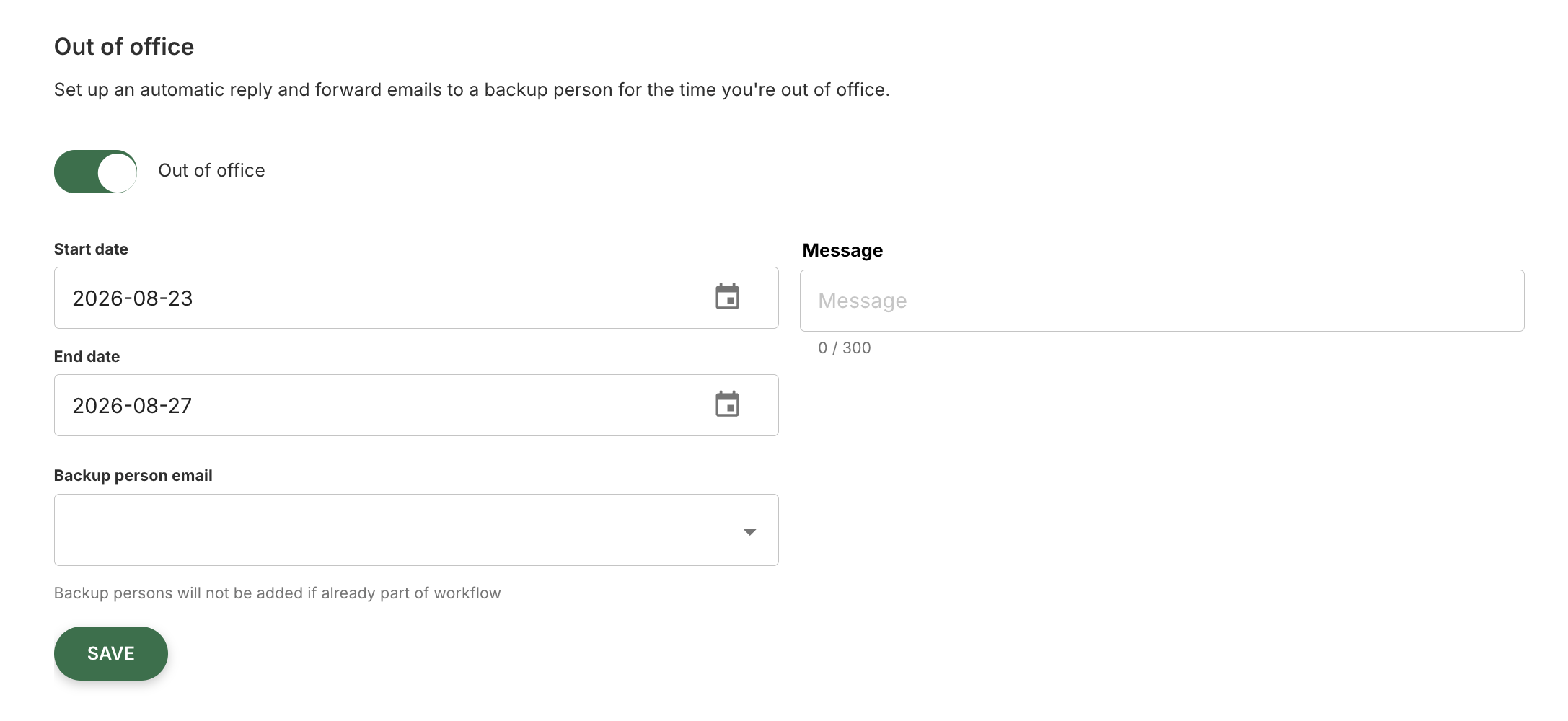
Click the toggle button labeled “Absent” to configure your absence.
-
Enter a start and an end for your absence. You can enter these dates manually or select them by clicking the calendar icon.
-
In the input field “Message” you can write an out-of-office note. This will be sent to people who invite you to sign while you are absent.
-
In the field “Define substitute” choose one or more people who will represent you during your absence.
-
Click the “Save” button to activate your absence. Your details should now be displayed in a gray box.