

💡 At a glance
The One-Click Signature allows you to sign all documents within a document package with just one click.
Note: This feature is only available when you have been invited by someone else to sign a document package. It does not work for document packages that you uploaded yourself and wish to sign.
Prerequisites for use are:
-
You have been invited as a "signer" to a document package.
-
For each document in the package that you are to sign, at least one signature field is defined.
-
You have a User+ license.
📑 Step-by-step guide
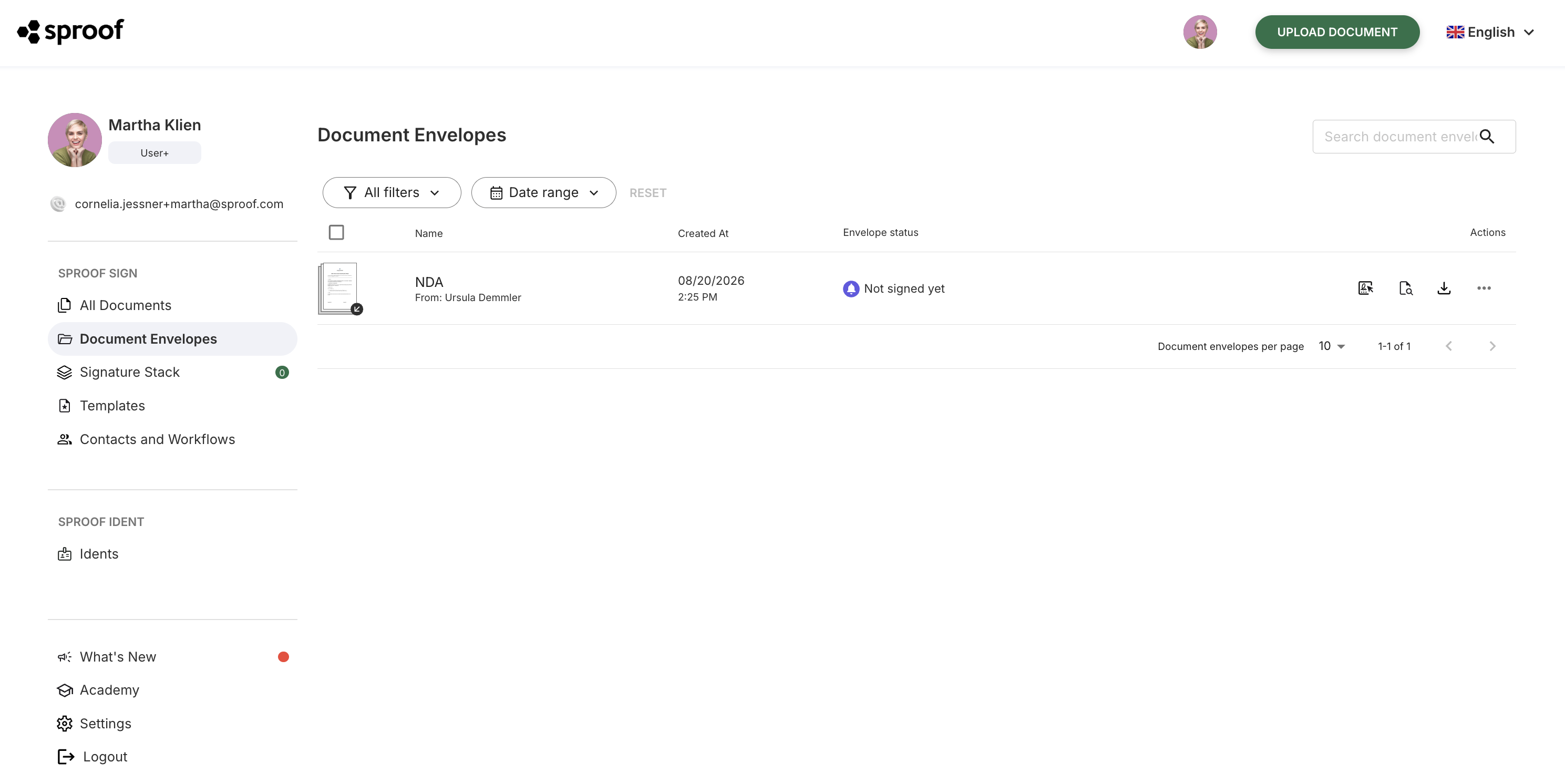
If you have received a document package and want to sign using One-Click Signature, proceed as follows:
-
In the dashboard, click "Document Packages" in the left navigation.
-
Find the relevant package. The status should display "Not yet signed."
-
If all prerequisites are met, you will see an icon in the package row, on the right under actions, that shows a mouse pointer and a signature.
-
Click this icon. All documents in the package that are intended for your signature will now be signed in a single step.
Note: The One-Click Signature only affects documents for which you have the role "signer." Documents that you only need to view or approve are not affected.