

Hello developer,
we are pleased to demonstrate a seamless integration of our signature solution into your applications.
This use case allows you to control the entire signature process within your system, where the end user only has to confirm the final signature on their mobile device and thus can sign all previously stacked documents at once. You achieve this by combining our plans/planmembers/, /documents/signature, /user/pendingSignatures and /documents/user/signBatch API endpoints.
For the batch signature it is necessary that the user has a User+ license and that their identity has been successfully verified.
To check the status of a user, you can use the GET /plans/planmembers endpoint. This endpoint returns a list of all plan members and their license status as well as identification status.
1. Check identification status of plan members
Endpoint: GET https://sign.sproof.com/api/v1/plans/planmembers/list
Example request:
GET https://sign.sproof.com/api/v1/plans/planmembers/list?token={{token}}
Expected response structure:
{
  "data": [
       {
      "email": "max.mustermann@sproof.com",
      "firstName": "Max",
      "lastName": "Mustermann",
      "identification": {
        "identifiedAt": "2025-07-30T12:12:33.844Z",
        "identificationStarted": true,
        "isIdentified": true
      },
      "blockedAt": null,
      "isPending": false,
      "userPlus": true,
      "lastLoginAt": "2025-07-31T12:36:28.844Z"
    }
  ],
  "pagination": {
    "currentPage": 1,
    "lastPage": 1,
    "perPage": 1,
    "to": 1,
    "total": 1
  },
  "all": 1,
  "userPlus": 1,
  "user": 1
}
To check the license and identification status of a specific user, search the returned list for the user's email. Make sure that userPlus and isIdentified are set to true.
If the check is successful, you can seamlessly guide the user (in this case Max Mustermann) through the process. If this is not the case, you can give the user appropriate instructions (e.g., "Please complete the identification process").
2. Create signature request (createSignatureRequest)
First, create a signature request. This is the first step to prepare a document for signature and define basic information such as sender and recipients.
Endpoint: POST https://sign.sproof.com/api/v1/documents/signature
Example request body for a document:
{
  "token": "{{token}}",
  "inviteData": {
    "sender": {
      "email": "{{sender}}",
      "firstName": "{{sender_firstName}}",
      "lastName": "{{sender_lastName}}"
    },
    "recipients": [
      {
        "email": "max.mustermann@sproof.com",
        "firstName": "Max",
        "lastName": "Mustermann"
      }
    ],
  },
  "envelopeData": {
    "documentDataArray": [
      {
        "data": "{{pdf_im_base64_format}}",
        "fileName": "Ihr_Vertragsdokument.pdf",
        "recipientDetails": {
          "max.mustermann@sproof.com": {
            "role": "signer",
            "signaturePositions": [
              {"page": 0, "x": 0.57489, "y": 0.8455, "width": 0.35, "height": 0.1}
            ]
          }
        }
      }
    ]
  }
}
Important notes about the request body:
-
token: Your API token for authentication. -
sender.email: The sender's email address, which must belong to your plan. -
recipients: An array of recipients. For this use case it is important that the recipient is defined with the role"signer". -
envelopeData.documentDataArray.data: Your PDF document in Base64 format. -
envelopeData.documentDataArray.recipientDetails: Defines the specific details per document for the recipients, including signature positions (important for this use case). -
callbackUrl: Your URL to which sproof sign will send status updates about the document. This is essential for asynchronous processing.
The response to this request contains important IDs such as the memberId of the signer, which you will need for the next steps.
3. Add document to stack (addDocumentToStack)
After the signature request has been created, you can add the document to the signature stack of the user (in this example Max Mustermann). This user must be in the same user plan. The stack is a temporary collection of documents that a user can sign together.
Endpoint: POST https://sign.sproof.com/api/v1/user/pendingSignatures
Example request body:
{
  "token": "{{token}}",
  "memberId": "{{memberId_von_Max_Mustermann}}",
  "signatureType": "qes_sproof"
}
Important notes:
-
memberId: The ID of the member to be signed, which you received in the previous step fromcreateSignatureRequest(Max Mustermann in this example). -
signatureType: qes_sproof:The batch signature via the API only works for QES signatures.
After the document has been added to the stack, it waits for the user's final signature.
4. Trigger batch signature (signBatch)
This step is the core of the use case: you trigger the signing of the user's entire stack. This causes the user to receive a notification on their mobile device to confirm the signature with one click — everything else is handled in the background by sproof sign.
Endpoint: POST https://sign.sproof.com/api/v1/documents/user/signBatch
Example request body:
{
  "token": "{{token}}",
  "email": "max.mustermann@sproof.com"
}
Important notes:
-
This call initiates the signing process for all documents that are in the user's stack (Max Mustermann in this example).
-
The user receives a push notification on their mobile device for the final confirmation.
-
The
callbackUrlyou provided increateSignatureRequestwill inform you about the status of the signature.
5. Receive callback notifications and download document
Once a document is signed or a recipient declines it, we send a POST request to the URL you specified in callbackUrl. This request contains an object with relevant information about the document status, including the memberId.
Example callback object:
{
  "name": "important_contract",
  "id": "8925b941ea322b82a246a19c6f5d29d3ee457a83cb679eaa008c2c7707a574a8cd1937",
  "language": "en",
  "updatedAt": "2025-07-23T14:03:02.854Z",
  "createdAt": "2025-07-23T14:02:41.082Z",
  "signaturesTypes": [],
  "callbackUrl": https://webhook.site/ihre-eigene-callback-url",
  "returnUrl": null,
  "returnBtnText": null,
  "inPersonSigning": false,
  "signingRound": 1,
  "member": {
    "id": "32106bfe541f3a99525097e956eb9624f0852cb3b4d3201ae2d647c9b5fe4b131de626",
    "email": "sender@sproof.com",
    "firstName": "sproof",
    "lastName": "Sender",
    "lastActivityAt": "2025-07-23T14:02:41.091Z",
    "createdAt": "2025-07-23T14:02:41.091Z",
    "signed": false,
    "isAdmin": true,
    "isSigner": false,
    "signaturePosition": [],
    "signedAt": null,
    "signingOrder": 1,
    "declinedAt": null,
    "signatures": []
  },
  "boxes": [],
  "members": [
    {
      "id": "3f14fd13d6e4f7981b86a9b476426a97ede88ee6921f24b221e7d97bfce660f2430b8d",
      "isSigner": true,
      "email": "max.mustermann@sproof.com",
      "firstName": "Max",
      "lastName": "Mustermann",
      "isAdmin": false,
      "signedAt": "2025-07-23T14:03:02.657Z",
      "declinedAt": null,
      "signingOrder": 1,
      "signaturePosition": null,
      "signed": true,
      "signatures": [
        {
          "signatureType": "qes_sproof",
          "signedAt": "2025-07-23T14:03:02.657Z"
        }
      ]
    }
  ],
  "allSignersSigned": true,
  "allMembersSigned": false
}
Important note: In case of a failure, a retry mechanism is implemented to ensure the request is attempted again.
6. Download signed document
With the memberId (http://member.id), which you receive in the callback object, you can download the signed document as a binary PDF or as a Base64-encoded file.
Endpoint: GET https://sign.sproof.com/api/v1/documents/download/{{memberId}}?token={{token}}
-
Replace
{{memberId}}with the id of the sender that you received in the callback undermember.id(32106bfe541f3a99525097e956eb9624f0852cb3b4d3201ae2d647c9b5fe4b131de626in this example). -
Replace
{{token}}again with your API token.
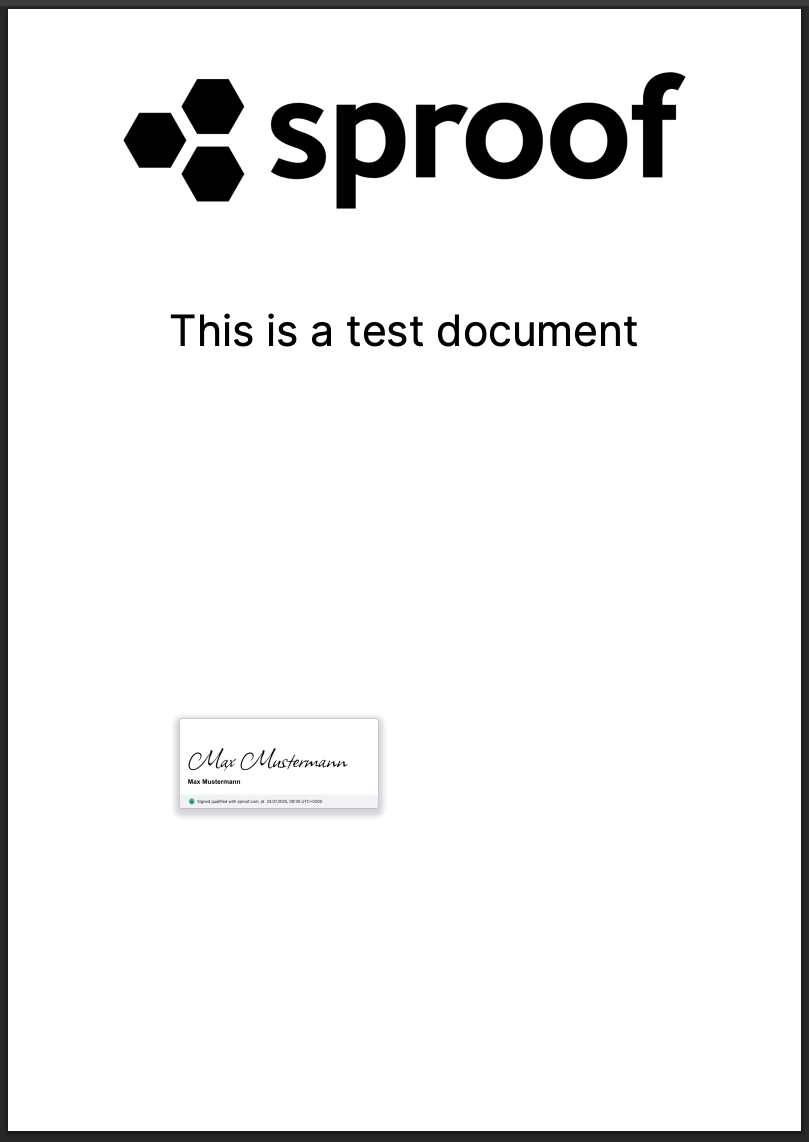
We hope this example helps you get started with your integration!
If you have any questions, we are happy to assist you.