
Digital identity verification in the sproof Ident Demo Portal
The sproof Ident Demo Portal is an interactive test environment that allows you to experience the integration of various identification methods into realistic business processes. The portal illustrates how sproof Ident serves as the technological foundation to verify the identity required for legally binding digital signatures. By going through the different sectors, the logic behind automated processes and government eID interfaces is clarified.
Try the Demo Portal for free yourself: https://sign.sproof.com/#/ident-demo
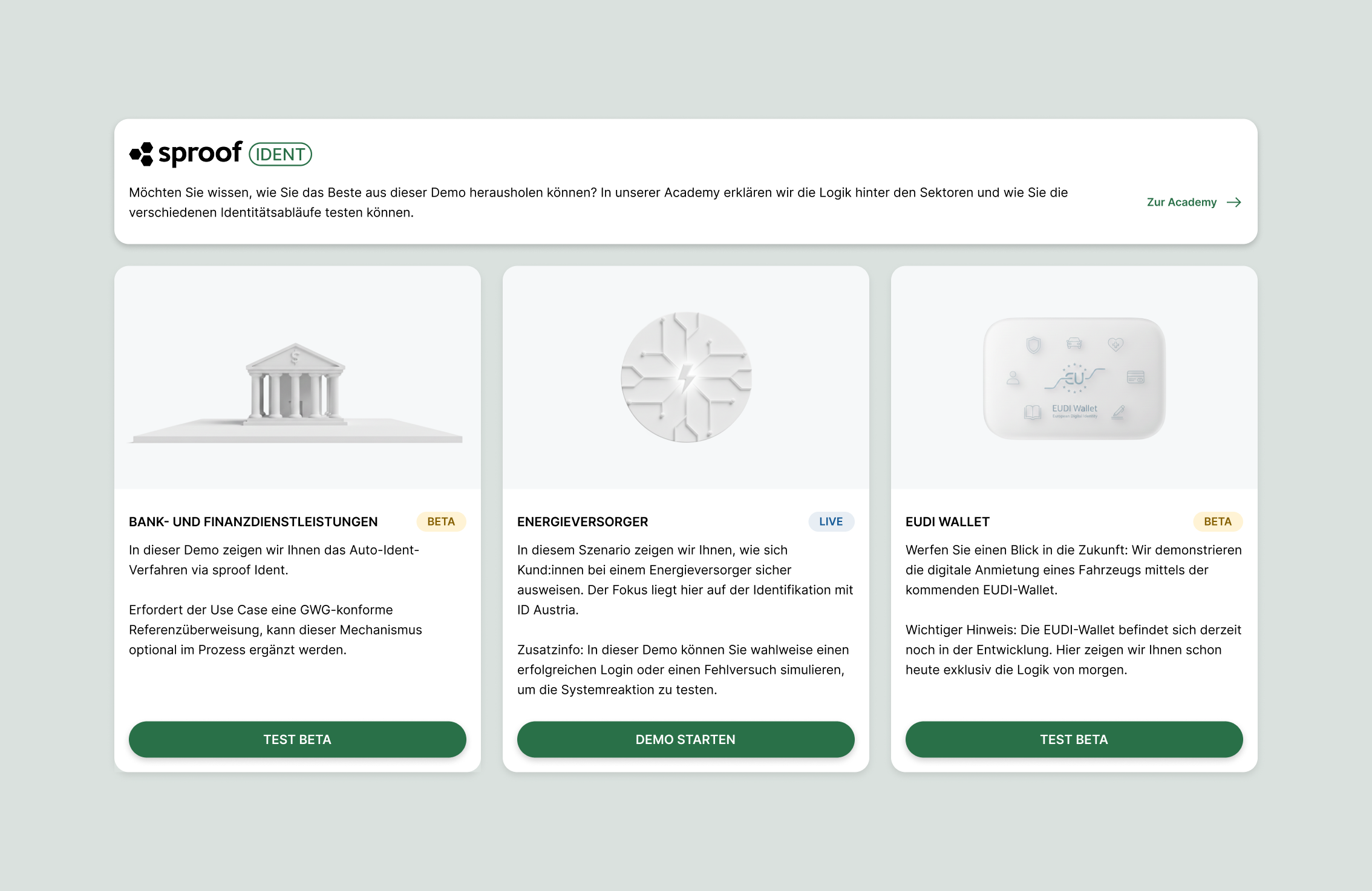
Use case Banking and financial services:
Auto-identification procedure
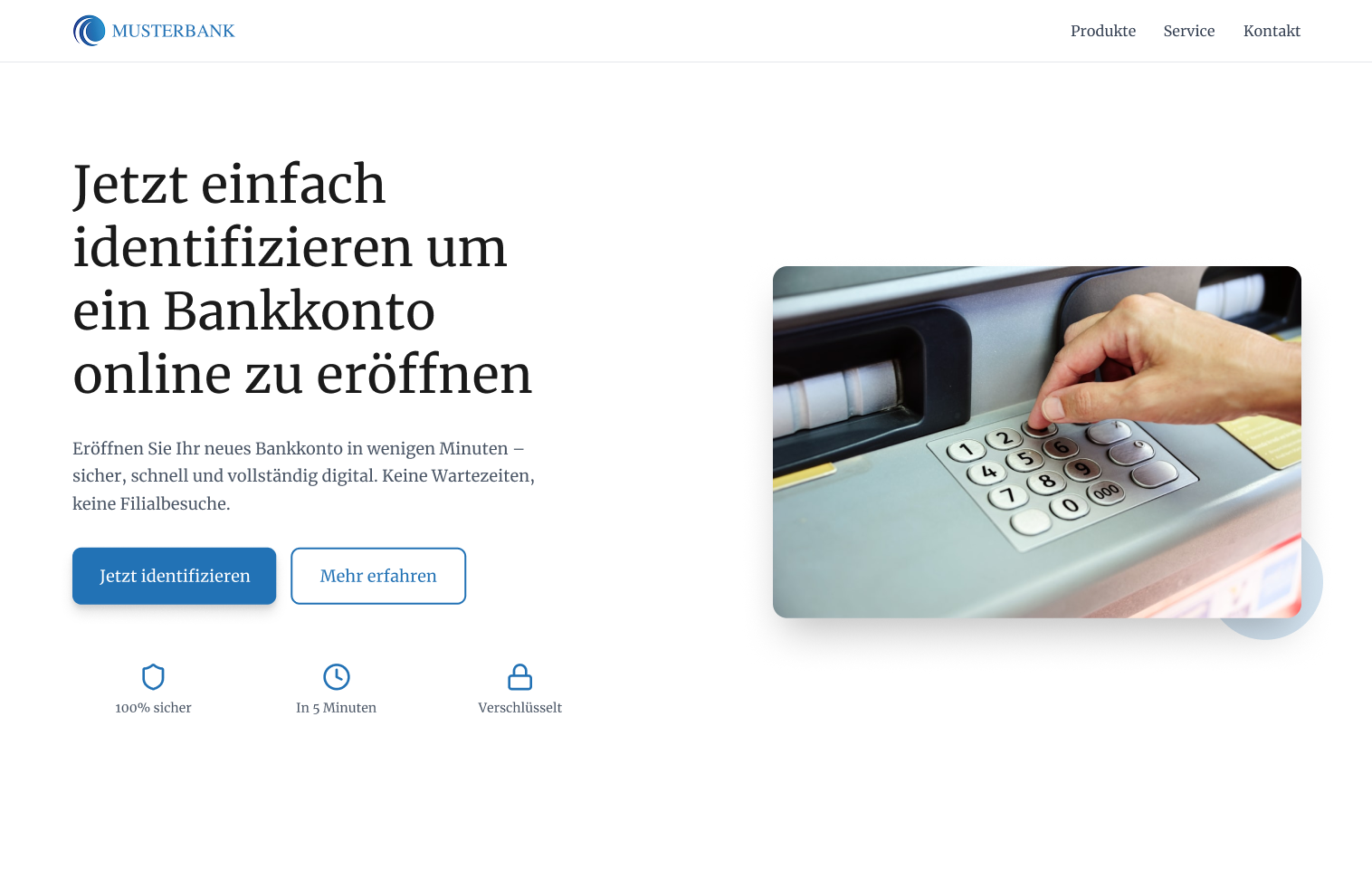
In the banking and financial services sector, the process of a digital account opening is simulated. A fully branded flow is used here, designed so that the transition to the identification platform is not perceptible to the user. During the identification process, you go through the steps of taking a photo of yourself, scanning a valid identity document, and the final authenticity check of the document.
Instructions:
-
Click “Identify now”.
-
Give your consent and click “Start”.
-
A video will then appear showing you the typical user journey of the identification process.
Use case Energy provider: ID Austria
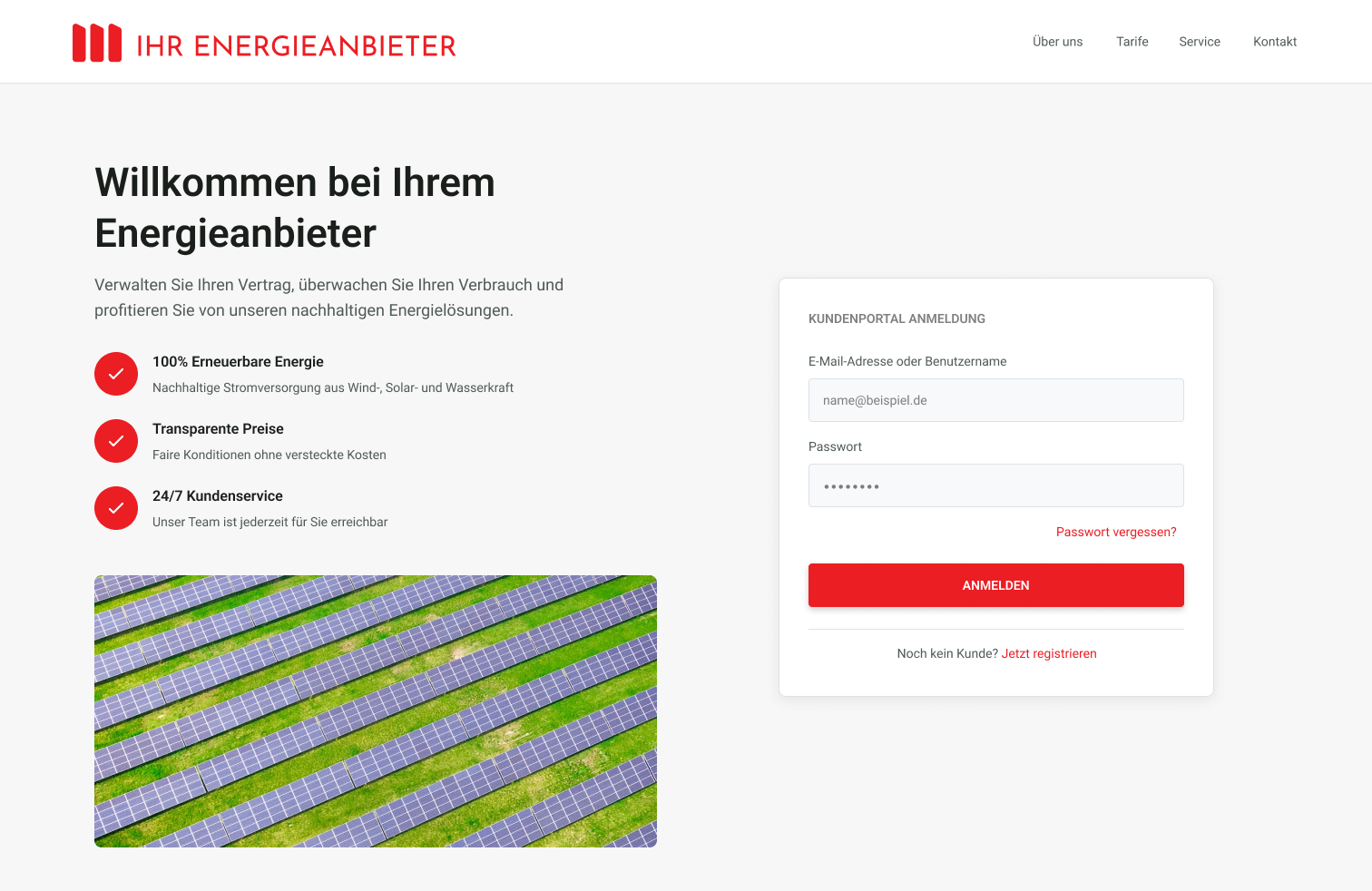
The scenario for energy providers demonstrates identification during the initial registration in a customer portal. In this use case, ID Austria is used in the full version to protect access and to confirm the contract partner’s identity with government validation. In this demo you can test how the link between a portal account and the personal digital identity is made. This forms the basis for later carrying out contracts or service changes legally securely in the customer portal.
Instructions:
-
Click “Register now”.
-
Give your consent and click “Start”.
-
Scan the QR code with your smartphone and sign in with your existing ID Austria account.
Use case Car rental: EUDI Wallet
The EUDI Wallet (European Digital Identity Wallet) is an app with which EU citizens can securely identify themselves digitally across Europe and store official documents such as identity cards or driving licenses. It enables both proof of identity to authorities and private login to platforms. The goal is a uniform, privacy-compliant standard for digital actions throughout the European Union.
Since the wallet is currently still in the development and testing phase, we show you a preview here using the example of a vehicle rental. In this educational demonstration you experience the logic of tomorrow: identity and driving license data are transmitted seamlessly from the digital wallet to the rental company so that the rental contract can be signed digitally right away.
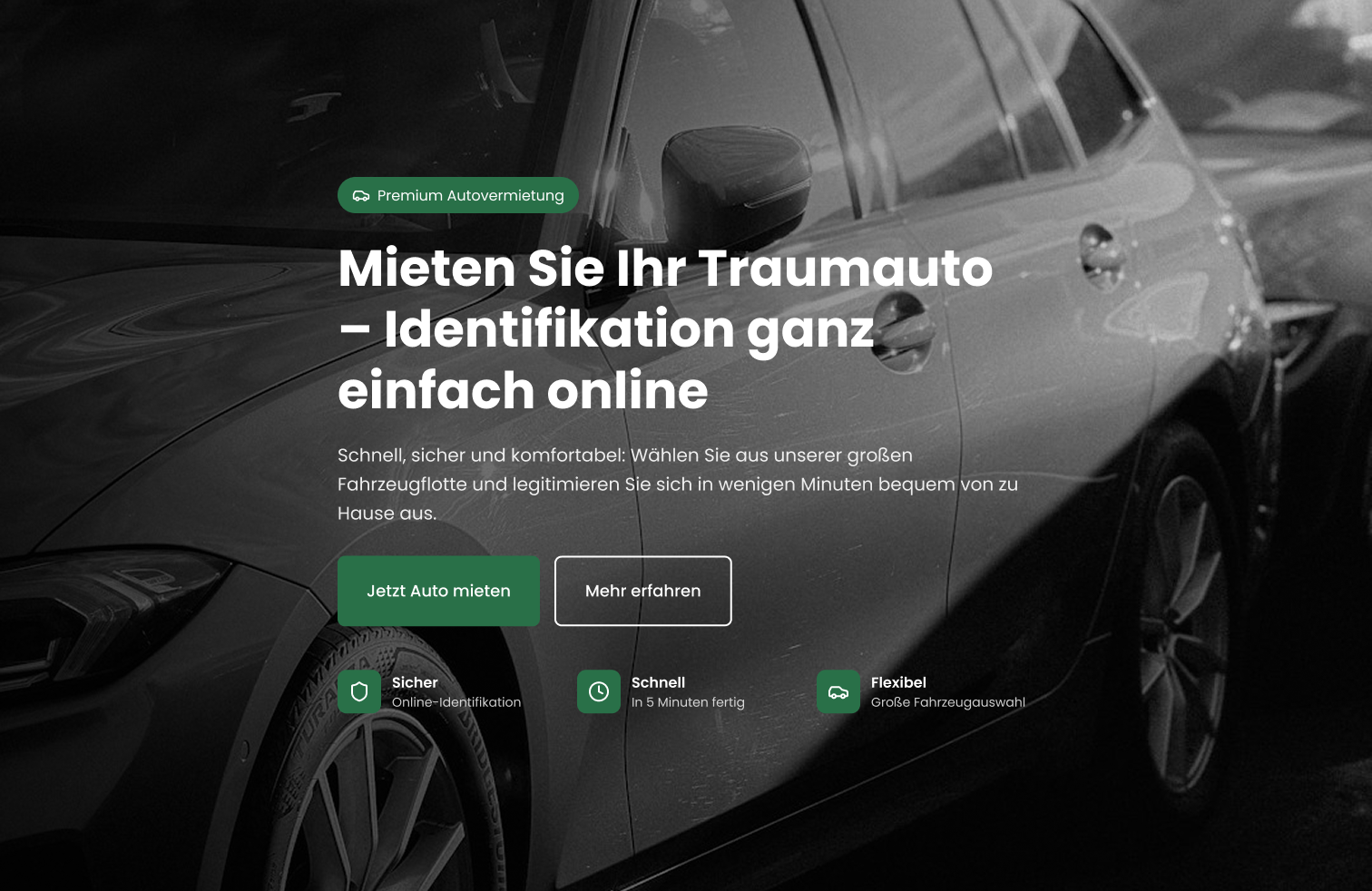
Instructions: Set up test identity and rent a car
1. Preparation in the sproof Ident Demo Portal
-
Click “Rent a car now”.
-
Give your consent and click “Continue”.
-
A QR code will appear. To scan it, you must first load your test identity into your wallet app. Follow the appropriate installation instructions for your operating system.
2. Installation of the wallet app
Option A: Installation on iOS (iPhone)
The app is provided on the iPhone via Apple's test platform for developers.
-
Step 1: Install the TestFlight app from the official App Store.
-
Step 2: Open the browser on your iPhone and go to http://wallet.a-sit.at.
-
Step 3: Find the “iOS” section and tap the link “Join our TestFlight”.
-
Step 4: TestFlight will open automatically. Tap “Accept” there and then “Install”.
-
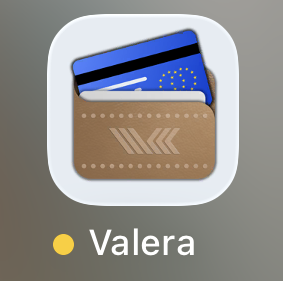
Step 5: The Valera app will now appear on your home screen (marked with a small orange dot for test apps).
Option B: Installation on Android
On Android you have two options depending on how experimental you want to test.
-
Step 1: Open the browser on your smartphone and go to http://wallet.a-sit.at.
-
Step 2: Find the “Android” section.
-
Step 3: Choose one of the two options:
-
Stable Version: The most stable release.
-
Preview Build: The latest version with the most current features.
-
-
Step 4: The website will download an installation file (APK).
-
Step 5: Open the downloaded file. Confirm your phone’s security prompt to allow installing apps from “unknown sources” (from the browser).
-
Step 6: Tap “Install”. The app will now be added to your applications.
3. Load test data into the app
Once the app is installed, the process is identical for both systems:
-
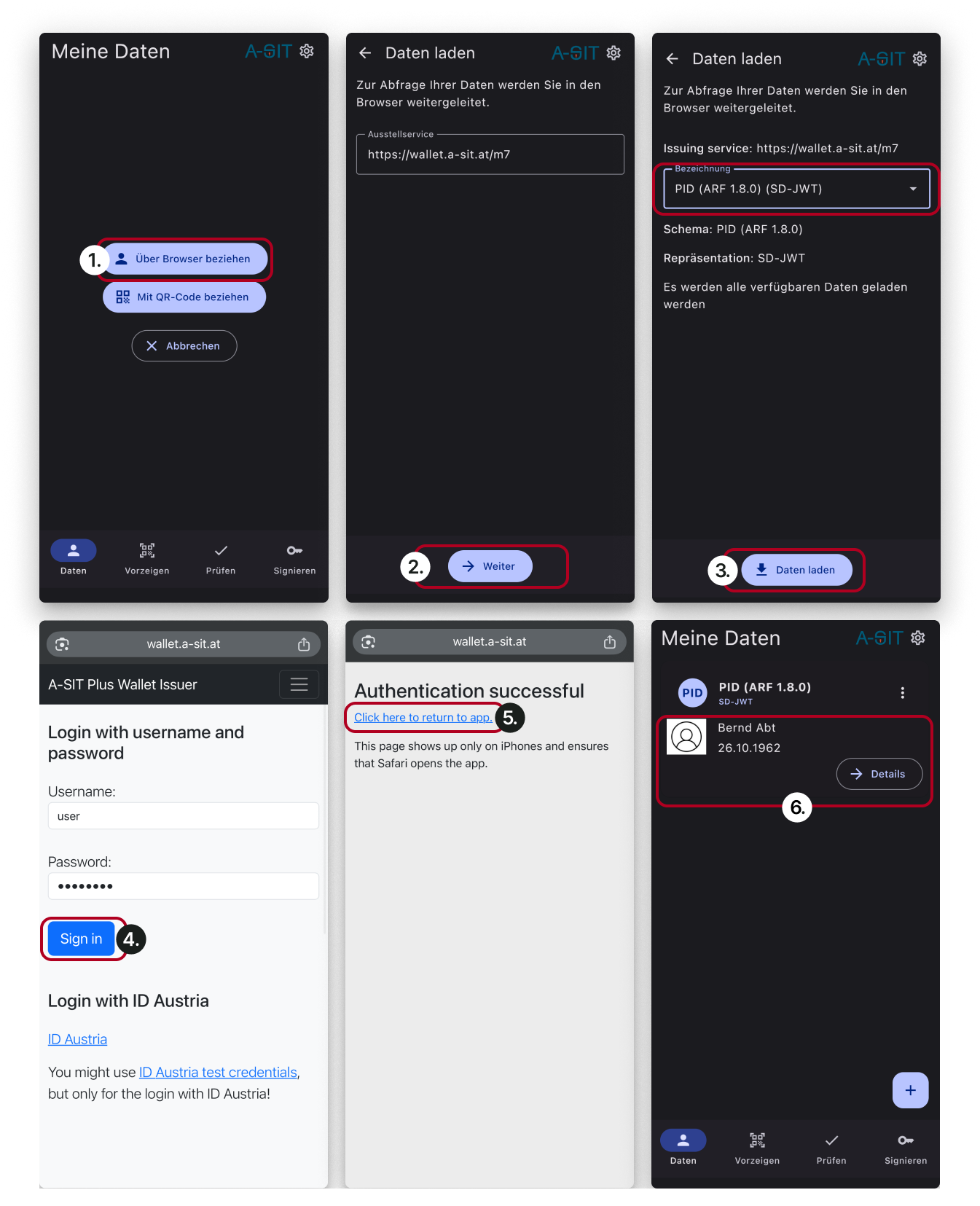
Open the Valera App, tap “+ Load via Browser (Load via browser)” and choose “Continue”.
-
Select the entry “PID (ARF 1.8.0) (SD-JWT)” via “Change identifier”.
-
Tap “Load Data (Load data)” (the browser will open).
-
Log in with the username
userand the passwordpassword. -
After the message “Authentication successful” appears, click “Click here to return to app (Return to app)”.
-
The test data has now been loaded into the wallet.
4. Complete the rental process
After the test data has been loaded into the wallet, perform the following steps:
-
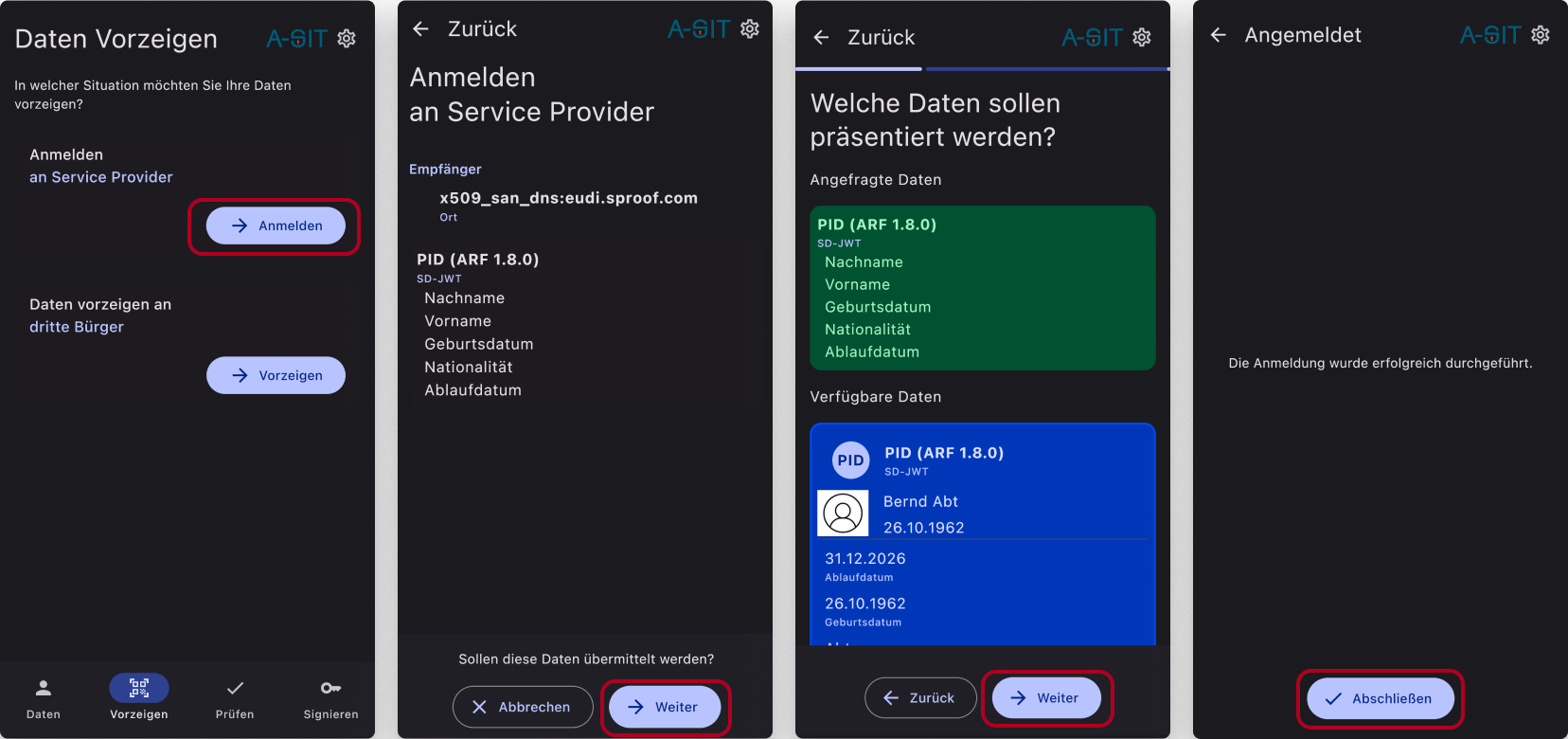
Navigate in the Valera App to the menu item “Present”.
-
Select “Sign in to Service Provider”. Your camera will be activated.
-
Now scan the QR code in the sproof Ident Demo Portal, click “Continue”, select the test identity, and click “Continue” again.
-
You will now see a confirmation in the sproof Ident Demo Portal that you have completed the identification and could in the next step choose a car.